iOS 8 Accessibility Overview

Apple has released iOS 8, the latest version of its operating system for mobile devices such as the iPad, iPhone and iPod touch. This update is not as dramatic an update as iOS 7 was, with its completely overhauled user interface, but in terms of accessibility it continues to refine the user experience so that it works  even better and for more people.

Aside from the features I will discuss in the rest of this post, I should mention a couple of small changes to the way the Accessibility pane is organized. A new option for turning on audio descriptions is now listed under Media along with Subtitles and Captioning. Similarly, options such as Switch Control, AssistiveTouch and Call Audio Routing are now listed under Interaction. I like this change because it highlights the different ways you can interact with the devices rather than specific disabilities. With that out of the way,   what follows is a quick overview of the key features that have been added or enhanced in this version of iOS 8, with videos of each feature in action as I am able to record and release them.

Zoom

Apple has enhanced the Zoom screen magnification feature in iOS 8 to provide even more flexibility and customization. Whereas in previous versions you could only zoom in on the entire screen, users of iOS 8 now have the ability to turn on a window mode where only part of the screen is magnified while the rest of the screen remains at its default magnification. Furthermore, a number of lens filters are available to customize the appearance of the zoomed in area of the screen. Lens filter options include:

  • Inverted (similar to the Invert Colors feature available in previous versions of iOS, which reverses the colors for added contrast),
  • Grayscale (for removing all color and replacing with shades of gray)
  • Grayscale inverted (similar to inverted but with only shades of grayscale), and
  • Low light (which dims the screen somewhat for those with light sensitivity).

An option I really like is being able to adjust the zoom level with a slider, rather than relying on a somewhat tricky gesture in previous versions of iOS. I found that gesture (which requires the user to double-tap and hold with three fingers, then slide up or down to adjust zoom) to be difficult for new users in the sessions I do for teachers, so I welcome the addition of this slider. A maximum magnification level for this zoom slider can be set in the Zoom settings. 

Many of the options for customizing Zoom are available from a popover menu that can be accessed in a number of ways:

  • triple-tap with three fingers
  • tap the handle on the edge of the window in window mode, or
  • tap a new controller similar to the one available with Assistive Touch. As with AssistiveTouch, you can move this controller around the screen if it gets in your way, and there is even an option to reduce its opacity. A tap and hold of the controller turns it into a sort of virtual joystick for panning around the screen with the Zoom window.

The keyboard is much easier to use with Zoom with a new Follow Focus feature that allows Zoom to follow the keyboard focus as you type, and you can also choose to have the keyboard remain at the default 1X magnification while the rest of the screen is magnified.

https://www.youtube.com/watch?v=eH9VHHueSRE

VoiceOver

Apple has added Alex, its natural-sounding voice previously only available on the Mac, to iOS. As on the Mac, Alex is not limited to VoiceOver, but will work with other iOS speech technologies such as Speak Selection and the new Speak Screen (more on that later). However, note that not all devices are supported (check the Apple website to see if yours is on the supported list), and Siri still has its own voice rather than using Alex.

Building on the handwriting recognition feature introduced in iOS 7 iOS 8 also supports  6-dot Braille input. This feature involves the use of an onscreen 6-dot Braille keyboard that will translate 6-dot chords into text. Two modes for Braille input are supported: screen away mode and table top mode. These two modes determine the location of the onscreen controls for Braille input. In Screen away mode, the controls are placed on the right and left edges of the screen, while in table top mode they are arranged in the shape of the letter V.

While we are on the subject of Braille, I should note that the Braille pane in Settings now includes an option for turning pages when panning, as well as separate panes for selecting the Braille display output and input (contracted, uncontracted six-dot and uncontracted eight-dot Braille).  Some of these options, such as the option for turning on eight-dot and contracted Braille,  were previously available as on/off swiches in iOS 7.

Access to the new Braille keyboard is available through the rotor, which also now includes an option for controlling audio ducking. When audio ducking is enabled, VoiceOver will automatically lower the volume of whatever other sound is playing (such as from a video) so that you can hear its output better. Finally, in addition to the standard text entry method and touch typing there is now an option for Direct Touch Typing. This is similar to typing when VoiceOver is not turned on, where you just tap once on a letter to enter each character. This option could be helpful to someone who has some remaining vision but uses VoiceOver as an additional support when reading content on their devices.

http://youtu.be/DYUHiIlIrPk

Speak Screen

With Speak Screen, a simple gesture (flicking down with two fingers from the top of the screen) will prompt the selected voice (which could be Alex) to read what appears on the screen. Speak Screen is different from Speak Selection, a version of text to speech available in previous versions of iOS that requires the user to first select text that can be read aloud. Unlike Speak Selection, Speak Screen can read not only text but the names of buttons and other interface elements, and the user does not have to make a selection first. Options for controlling the speed of the voice, pausing the speech and moving the focus of what is read aloud are available as a popover menu that can be collapsed to the side of the screen while the contents of the screen are read aloud. 

https://www.youtube.com/watch?v=WYpzKPyTyGM

Guided Access

Apple has added a time limit feature to Guided Access, allowing teachers, parents, therapists and the like to lock students into a specific app and specify the length of time the app is to be used.   On devices that have the TouchID sensor, TouchID can now also be used as an alternative to the passcode for disabling Guided Access. With a time limit set, the child using the iOS device can get a warning as time is about to expire, either as a sound or with one of the built-in voices. In the classroom, features such as  the timer for Guided Access can be helpful for ensuring  students are on task while still setting expectations for  transitions. Guided Access in iOS 8 also now allows for the keyboard to be disabled while the student works in an app, and I found that in Safari you can also disable dictionary lookup.

https://www.youtube.com/watch?v=lovgyT06qrw

QuickType and Third-Party Keyboard API

The onscreen keyboard has gained smart word prediction in iOS 8. According to Apple, the QuickType prediction depends not only on your past conversations and writing style, but also on the person you are writing to and the app you are using. For example, in Messages the keyboard will provide suggestions that match a more casual writing style while in email it will suggest more formal language. Word prediction can save time and effort for everyone, and it can be especially helpful for students who struggle with spelling or those who find it difficult to enter text due to motor challenges.

In addition to QuickType, there is a new API  third party developers can use to  create  customized keyboards that users can choose from instead of the standard one included with iOS.  Already, developers of third party keyboards such as Fleksy and Swype have promised to have iOS 8 keyboards ready soon after launch.  I am especially excited by the upcoming customizable keyboard from AssistiveWare, the makers of Proloquo2Go. This third-party keyboard for iOS will include many options for customizing the appearance of the keyboard as well as changing the spacing of the letters and more. With these third-party keyboards users should have more options for customizing the keyboard experience by changing the key spacing, using color themes and more. Fleksy even has a page where you can sign up to be notified when their iOS 8 keyboard is ready and in the App Store. 

Grayscale

In iOS 8, Apple had added Grayscale as another option for changing the appearance of the display. Previously it was only possible to turn on Invert Colors to view a reversed, high contrast,  version of what appeared on the screen.   With Grayscale turned on, the entirety of iOS’s UI is displayed using a range of gray tones. While this is intended to help people with color perception issues, it could also be helpful for web developers who need to test to make sure they are not relaying on colors such as green and red alone for meaning. A similar feature is already available in OS X.

Miscellaneous

In addition to improvements to key accessibility features such as Zoom and Guided Access, iOS 8 includes a number of other accessibility enhancements, including:

  • The ability to adjust the text size and make it bold is also now available in the Display and Brightness pane ( in previous versions of IOS  a Text Size option was also found in the General pane, right above Accessibility).
  • AssistiveTouch now has options for the Notification Center and the Control Center. This is really nice for the people who are unable to perform the flick gestures required to bring up these two options at the top and bottom of the screen.
  • Navigation within the Switch Control menu has improved and is now more efficient. When the menu has more than one row of options visible, scanning is performed by row and then by column (as opposed to one item at a time). This reduces the amount of time it takes to navigate through all of the options on the menu. Also, the menu now takes into account the most likely actions a user would want to perform in a given context. For example, in the Home screen when I bring up the menu I only get an option to tap and to scroll to the right. However, I can still select the dots at the bottom of the menu to see the other actions or settings.
  • Messages includes an option for sending audio clips from within the app, which will be of benefit to people who can’t enter message text as quickly as they can speak. On the receiving end, these messages can be played back by just raising the device to hear them, making the interaction easier for those with motor difficulties. Video clips can also be sent in a similar way. For someone with a cognitive disability, the ability to see something in concrete terms with the help of a quick video clip will be helpful (a picture is worth a thousand words, right?).
  • Siri now has an always-on listening mode where the user can just say “Hey Siri” to activate the personal assistant.  To avoid draining the battery, this mode will only work when the device is plugged into power. This will be helpful to any individual who has difficulty pressing the Home button to activate Siri.
  • As on the Mac, Dictation now takes place with real time feedback (the text is entered almost immediately after it is spoken).  This allows you to catch and fix errors more quickly as you type, which should be helpful to anyone who relies on Dictation as a method for text entry.
  • iOS 8 adds multi-device support for Made for iPhone hearing aids, allowing users to pair their hearing aids with multiple iOS devices so they can switch between them as needed.
  • The new support for a heath data API for tracking  physical activity. For someone who is on the road to recovery (from an illness or an injury) such tools should prove helpful in keeping them on track and motivated about their progress, which is really important.  There is even an option for including a health card (with information about medications, allergies and the like) in the lock screen. This idea will be taken even further when the new Apple Watch is released with a number of sensors for collecting health information that can be accessed with the Health app on iOS devices.
  • A similar home automation API could come in handy for allowing people with motor difficulties to more easily control the appliances. lights and other aspects of their home environment using  their iOS devices.
  • NFC payments (Apple Pay) could make interactions at gas stations, pharmacies and other places of public accommodation a bit easier for people with motor difficulties. Rather than fumbling with a wallet to take out a credit card or loyalty card before buying a coffee, all that’s required is a simple tap of the phone (or upcoming watch) with the payment station.

When you take into account all of the accessibility and other enhancements built into iOS 8, it is clear that Apple is truly focused on creating an ecosystem of hardware, apps and services that work for everyone. Apple’s iOS 8 and iPhone/Apple Watch announcement also points forward to new technologies and means of interaction that will benefit people with disabilities. A great example is the new haptic feedback provided by the Taptic engine in the Apple Watch, which will use subtle vibration patterns to guide someone when using turn by turn navigation with the Maps app. I hope to see this technology appear in future iPhones, as it would be of great benefit for those who are blind.

I was also fascinated by the way in which you can communicate with the Apple Watch using tap patterns, doodles and what appears to be animated avatars, and I hope a similar app is eventually added to iOS. I could see that being very useful  for young people who are on the autism spectrum or who otherwise have communication difficulties: what would be easier than drawing a big heart to tell your parent you love them,  for example.

On that happy note, that’s it for this post. I’ll continue to update it with videos as I have time to complete them (including the captions) or new details emerge. As someone with low vision, I would love to be able to use iOS 8 on the new iPhone 6 Plus which has a bigger screen (as well as a better camera with stabilization for my photography). Unfortunately, I will not be able to do so because I am locked into a service plan for a while and can’t afford to buy it unlocked, but the new Apple Watch intrigues me and I think I will save up to get it when it comes out in early 2015.  How about you? What’s your favorite new or improved accessibility feature in iOS 8? What do you think of the new iPhones that will be paired with iOS 8, are you getting one and if so which one?

Two new options for creating accessible video content

When combined with the latest accessibility features built into iOS and OS X, accessible content creates a powerful platform for empowering people with all levels of ability by giving us equitable access to information, services and learning. In this post, I will discuss two new (at least to me) options for creating accessible content: the addition of captioning support in Vimeo, and the YouDescribe service for creating audio described YouTube videos.

Vimeo and captions

Vimeo recently announced that it has added support for captions. This is great news because Vimeo and YouTube are the two most popular platforms for sharing online videos. I have found the quality of the uploaded video to be superior on Vimeo, and now that captions are supported I will use the site to upload many of my “human interest” videos to the site. I will continue to use YouTube for my video tutorials, where the quality of the compressed video is not as important and I have a lot more storage and more flexible time limits.

To add to the great news, you don’t have to do too much additional work to add captions to their Vimeo videos. If you have been following my video tutorials on the use of MovieCaptioner to caption QuickTime videos, then you’ve done most of the work already. From MovieCaptioner, you can easily export a caption file for YouTube by selecting Export > YouTube Captions. This will create an .SRT file you can then upload alongside your YouTube video to create a captioned version. The same file format is supported by Vimeo, so you only have to create the captions in MovieCaptioner once and then you can create captioned versions of your video on both services.  Vimeo has created a help page with more information about the captioning support.

Now, all is not perfect. The captions can be enabled on the desktop player and on Moible Safari, but not in the Vimeo app for iOS devices. It really would be nice for the Vimeo app to support the built-in captioning support in iOS 7, which even supports styles for adjusting the appearance of the captions. I suspect this oversight will be corrected soon.

YouDescribe

YouDescribe is a new effort from Smith-Kettlewell (with support from a Department of Education grant) that provides an online tool for adding audio descriptions to YouTube videos. These audio descriptions are useful to those who are blind by describing the action in the video that would not be perceptible without sight.

The service is currently free and it is very easy to use. You basically stop at the point in the video where you want to add the audio description and then record your audio using browser controls. To give you an idea of what this looks like, I have used the service to add audio descriptions to my One Best Thing Video. You can then share the audio described version of the video on Twitter, Facebook and other social networking sites. One aspect that I like about this service is that you do not have to upload your YouTube video a second time to YouDescribe. It uses your existing YouTube video and then overlays the audio descriptions on top of it.

As with Vimeo, there is a catch. The YouDescribe version of the video only works on the desktop. You can’t currently play the video on Mobile Safari.

As you can see these are not perfect solutions by any means. However, just the fact that efforts are underway to expand support for captions in online videos and to make audio descriptions easier is a good step in the right direction. It took Vimeo a long time to get captions supported in their player. Let’s hope that the service is serious about captions and will continue to improve the support to include the iOS app. As for YouDescribe, there are currently other ways of creating audio descriptions (I myself use a text file and the built-in accessibility feature on OS X that allows you to export the text to an audio file), but having authoring tools will make the practice more widespread. My hope is that YouDescribe is just the tip of the iceberg in this area and that in the future we will see other tools for audio descriptions in development.

Super Bowl Ad

As I was watching what turned out to be a blow-out win for the Seattle Seahawks and a less than entertaining game, the only thing that was left to enjoy were the commercials. One commercial in particular really caught my attention, both because of my experience as a user of assistive technology and my professional work as an accessibility consultant. This was of course, the  ad with Steve Gleason, a former player for the New Orleans Saints who now has ALS and uses eye gaze technology to communicate.

http://www.youtube.com/watch?feature=player_embedded&v=qaOvHKG0Tio

The ad does a lot to raise awareness of how technology can empower people with different abilities, and for doing it at a time when everyone was watching. I thought the ad was very well done and had a powerful message. As Chris Bugaj posted on Twitter, the ad at no point used the term assistive technology. Instead it focused on how technology empowers us all.

The idea that technology should be “empowering” rather than just “assistive” is something I can get behind, and in fact I have been advocating for that in all of my presentations.  The term “assistive technology” really puts the power in the person who is doing the “assisting” or in the technology itself. In reality, the power is and should be on the person using the technology. The technology should really be a tool for that person to accomplish whatever goals they have set for themselves and to live a self-determined life where they are in control of their futures and their day to day lives. I thought that message came through loud and clear in the ad which told Steve Gleason’s story.

After I watched the ad, I was really curious about the technology featured in it so I did a little research. Gleason was using the Tobii Eye Gaze Mobile along with a Microsoft Surface Pro Tablet and a special mount sold by Tobii.  If you add in the Microsoft Surface Pro tablet to the cost of the software and the mounting solution, the cost of providing eye gaze with a Windows mobile device is about $3,000 (without the tablet it is still about $2,000). In reality, it was not a Windows solution that was featured in the ad, that is it wasn’t a built-in feature of Windows but rather a third-party solution that currently only works on the Windows platform. That is generally the model for how accessibility is provided on the Windows platform. To be fair, Microsoft includes some accessibility features under the name Ease of Access in Windows, and some of them are actually quite good. I have always been impressed by the Speech Recognition feature. However, features like Narrator (the built-in screen reader) are not as robust and most people who use Windows rely on third-party products such as JAWS (a commercial screen reader that retails for more than $1,000).

The problem with these third party solutions is cost.  The argument has always been that the reason the technology costs so much is that there is a very small market for it. Well, that’s my argument for why these technologies (even if in a basic form) should be built in, as you can then take advantage of economies of scale. What would have been really cool with the Super Bowl ad is if someone were shown using technology that anybody at home on their new tablet or computer could try without spending $2-3,000. I hope that we will see eye gaze incorporated into the built-in accessibility toolkit in the next three to five years (hopefully sooner). Already, Switch Control on iOS includes the capability to use the camera as a switch input for those who can only move their heads. Imagine how cool it would be for students who can’t turn the page of an ebook manually to use their eyes to select “Next” instead. A built-in, universal design solution will make what Steve Gleason was able to do in the commercial possible for many more people who are not going to be in Super Bowl commercials, but whose lives are going to be changed dramatically as well.

What did you think of the Super Bowl commercial?

A SAMR and UDL Framework

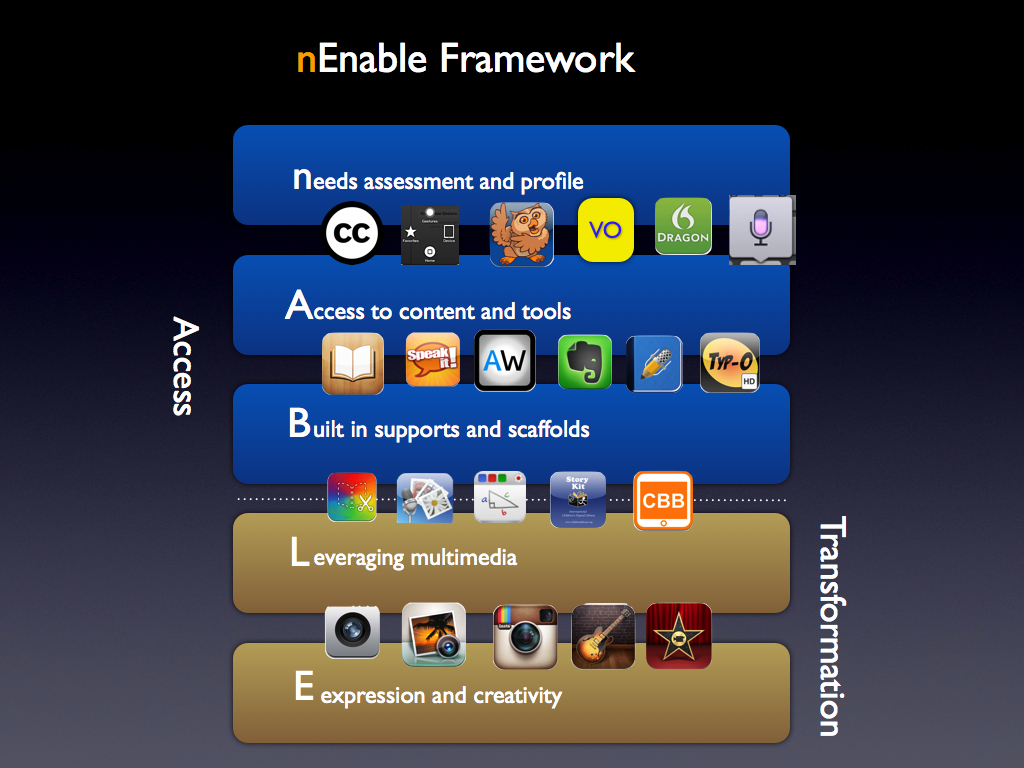
As I was traveling to Macworld 2013, where I presented a session on iBooks Author, I had some time when I was trapped on a plane without Wi-Fi (the horror!). Rather than reading the magazine in front of me, I gave into my urge to try to combine two frameworks I am really passionate about, the SAMR model developed by Dr. Ruben Puentadura and the UDL framework developed by CAST. Below is an image showing the framework I developed and some apps that address each level. This was just a quick brainstorm on a long plane ride, but I do appreciate your feedback.

SAMRandUDL008.008 SAMRandUDL.009


Update: Here is a text version that should be more accessible with a screen reader (with app and feature matching):

n: needs assessment and profile
determine current level of performance and desired outcomes.

A: access to content and tools
The technology eliminates barriers that prevent access to information

  • Proloquo2Go
  • FaceTime
  • VoiceOver
  • AssistiveTouch
  • Closed Captioning Support
  • Dictation (built-in with iOS)
  • Dragon Dictation
B: building supports and scaffolds for learner variability
The technology includes scaffolds and supports that account for learner differences.
  • iBooks
  • AppWriter US
  • Speak It!
  • Typ-O HD
  • Evernote
  • Notability
L: leveraging multimedia
The technology provides multiple means of expression.
  • Book Creator
  • Creative Book Builder
  • StoryKit
  • SonicPics
  • StoryRobe
  • Pictello
E: expression and creativity
The technology unleashes creative potential and disrupts perceptions of disability.
  • Camera
  • iMovie
  • Garageband
  • iPhoto
  • Instagram

Omnidazzle as an accessibility tool

One of the areas where I have some difficulty with my visual impairment is finding the cursor on the screen. I love that OS X  has a large cursor as one of the accessibility features. The large cursor setting can be found under System Preferences, Accessibility, Display in Mountain Lion and System Preferences, Universal Access, Mouse and Trackpad in other versions of OS X.

Large Cursor Setting in Accessibility, Display in Mountain Lion


However, the large cursor is not always enough for me, especially as my vision gets worse. I would love it if there were mouse trails or some other visual indicator to help me more easily pick out the cursor when I move it.

I have used a number of cursor enhancements for the Mac in the past, including Mouse Locator and Mousepose. Right now I am   trying Omnidazzle for this purpose and it is working rather well. Omnidazzle is a free cursor enhancement intended as a presentation tool to help the presenter highlight key information on the screen. By pressing a keyboard shortcut (usually Control + `) you can bring up effects such as a spotlight, highlighting the foreground window, and more. The one that I have found the most useful for me is the Bullseye one.

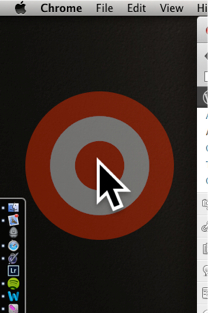
Bullseye effect along with large cursor in Omnidazzle

I have set this effect to bring up the bullseye when I shake the mouse. This is great, because whenever I lose the cursor the first thing I try to do it is move it around quickly to create some movement on the screen that I can pick up with my limited peripheral vision.  With Omnidazzle (sounds like it was created by Snoop Dogg, doesn’t it), a large red, bullseye will come up around the already large cursor. You can change the color, but red is one I can easily pick out.

Omnidazzle is freezzle, so check it out and let me know if you find it helpful.

Why and how to caption?

The Collaborative for Communication Access via Captioning has created an excellent video showing how real people are impacted by the lack of captioning. The title of the video says it all: “Don’t Leave Me Out”.

Don’t Leave Me Out

If you are a Mac user, I have created a couple of videos on how to caption QuickTime movies  that are available from the Tech Ease 4 All website I worked on at the University of South Florida. I caption my videos with a $99 program called MovieCaptioner from Synchrimedia.

These videos are themselves closed captioned, of course.

IOS 6 Accessibility Features Overview

At today’s World Wide Developer’s Conference (WWDC) Apple announced IOS 6 with a number of accessibility enhancements. I am not a developer (yet!) so I don’t have a copy of the OS to check out,  so this post is primarily about what I read on the Apple website and on social media. A few of these features (word highlighting for speak selection, dictionary enhancements, custom alerts)  were tucked away in a single slide Scott Forstall showed, with little additional information on the Apple website. So far, these are the big features announced today:

  • Guided Access: for children with autism, this feature will make it easier to stay on task. Guided Access enables a single app mode where the home button can be disabled, so an app is not closed by mistake. In addition, this feature will make it possible to disable touch in certain areas of an app’s interface (navigation, settings button, etc.). This feature could be used to remove some distractions, and to simplify the interface and make an app easier to learn and use for people with cognitive disabilities. Disabling an area of the interface is pretty easy: draw around it with a finger and it will figure out which controls you mean. I loved how Scott Forstall pointed out the other applications of this technology for museums and other education settings (testing), a great example of how inclusive design is for more than just people with disabilities.
  • VoiceOver integrated with AssistiveTouch: many people have multiple disabilities, and having this integration between two already excellent accessibility features will make it easier for these individuals to work with their computers by providing an option that addresses multiple needs at once. I work with a wounded veteran who is missing most of one hand, has limited use of the other, and is completely blind. I can’t wait to try out these features together with him.
  • VoiceOver integrated with Zoom: people with low vision have had to choose between Zoom and VoiceOver. With IOS 6, we won’t have to make that choice. We will have two features to help us make the most of the vision we have: zoom to magnify and VoiceOver to hear content read aloud and rest our vision.
  • VoiceOver integrated with Maps: The VoiceOver integration with Maps should provide another tool for providing even greater  independence for people who are blind, by making it easier for us to navigate our environment.
  • Siri’s ability to launch apps: this feature makes Siri even more useful for VoiceOver users, who now have two ways to open an app, using touch or with their voice.
  • Custom vibration patterns for alerts: brings the same feature that has been available on the iPhone for phone calls to other alerts. Great for keeping people with hearing disabilities informed of what’s happening on their devices (Twitter and Facebook notifications, etc.).
  • FaceTime over 3G: this will make video chat even more available to people with hearing disabilities.
  • New Made for iPhone hearing aids: Apple will work with hearing aid manufacturers to introduce new hearing aids with high-quality audio and long battery life.
  • Dictionary improvements: for those of us who work with English language learners, IOS 6 will support Spanish, French and German dictionaries. There will also be an option to create a personal dictionary in iCloud to store your own vocabulary words.
  • Word highlights in speak selection: the ability to highlight the words as they are spoken aloud by text to speech benefits many  students with learning disabilities. Speak selection (introduced in IOS 5) now has the same capabilities as many third party apps in IOS 6.

These are the big features that were announced, but there were some small touches that are just as important. One of these is the deep integration of Facebook into IOS. Facebook is one of those apps I love and hate at the same time. I love the amount of social integration it provides for me and other people with disabilities, but I hate how often the interface changes and how difficult it is to figure it out with VoiceOver each time an update takes place. My hope is that Apple’s excellent support for accessibility in built-in apps will extend to the new Facebook integration, providing a more accessible alternative to the Facebook app which will continue to support our social inclusion into mainstream society. You can even use Siri to post a Facebook update.

Aside from the new features I mentioned above, I believe the most important accessibility feature shown today is not a built-in feature or an app, but the entire app ecosystem. It is that app ecosystem that has resulted in apps such as AriadneGPS and Toca Boca, both featured in today’s keynote. The built-in features, while great,  can only go so far in meeting the diverse needs of people with disabilities, so apps are essential to ensure that accessibility is implemented in a way that is flexible and customized as much as possible to each person. My hope is that Apple’s focus on accessibility apps today will encourage even more developers to focus on this market.

Another great accessibility feature that often gets ignored is the ease with which IOS can be updated to take advantage of new features such as Guided Access and the new VoiceOver integration. As Scott Forstall showed on chart during the keynote, only about 7% of Android users have upgraded to version 4.0, compared to 80% for IOS 5. What that means is that almost every IOS user out there is taking advantage of AssistiveTouch and Speak Selection, but only a very small group of Android users are taking advantage of the accessibility features in the latest version of Android.

Big props to Apple for all the work they have done to include accessibility in their products, but more importantly for continuing to show people with disabilities in a positive light. I loved seeing a blind person in the last keynote video for Siri. At this keynote, Apple showed another  blind person “taking on an adventure” by navigating the woods near his house independently. As a person with a visual disability myself, I found that inspiring. I salute the team at Apple for continuing to make people with disabilities more visible to the mainstream tech world, and for continuing to support innovation through inclusive design (both internally and through its developer community).

iPhoto App and Accessibility

This weekend I finally had a chance to try out the new iPhoto app Apple released along with iPad 3 (or as they are calling it “the new iPad.”) As an aspiring photographer I was impressed with the many options for organizing, editing, and sharing photos Apple has packed into this app which only costs $4.99 in the App Store. There have been many reviews of the new app posted online already, so I will not add another one here. However, I do have a unique perspective on the new app that I would like to share. Not only do I like to take photos (calling myself a photographer might be a stretch but it’s a hobby I enjoy and continue to try to get better at every day), but I also have a visual disability so I am part of a small community of blind photographers.

When I opened the iPhoto app on my iPhone, the first thing I did was turn on the VoiceOver built-in screen reader to hear how it would do with the new photo editing app. Frankly, I was not surprised that the new iPhoto app would be as accessible with VoiceOver as it is. I have come to expect accessible products from Apple over last few years, and I’m proud to be associated with it as an Apple Distinguished Educator. However, as I dug deeper into the iPhoto app with VoiceOver, the level of attention to detail in providing accessibility was still pretty impressive. For example, the brushes used to retouch photos (repair, lighten, darken, etc) are all accessible through VoiceOver gestures, as are the exposure and color correction controls and the various effects, . When I selected the crop tool, VoiceOver told me to pinch to resize the photo and as I did so it told me how much as I was zooming in as well as how far the image was offset (“image scaled to 15X, image offest by 15% x and 48% y).

On the iPad, there is a dedicated help button that opens up a series of overlays indicating what each button does. Not only was every part of the overlay accessible, but so is the entire help built into the iPad version of the app. The attention to detail is more impressive to me because there are so few blind photographers who would take advantage of an app such as iPhoto. What it does show is the level of commitment Apple has to accessibility, because it will go to great lengths to add accessibility even when only a few people will benefit from it.

In a recent blog post, accessibility advocate Joe Clark called out a number of hot new apps (Readability, Clear, Path, and Flipboard) for what he called irresponsible web development that results in accessibility barriers. Well, to me this new iPhoto app shows that you can design an app that is not only visually appealing, feature-packed and easy to use and learn, but also accessible to people with visual disabilities. I hope more developers start to realize that accessibility does not have to compete with good design, but that both complement each other.

When I first loaded the iPhoto app on my iPhone (that was the first device I installed the app on) I was too impatient to go on the Web and read about the app before I started to work with it. That’s just the kind of user I am, I like to get right in and try things out. Well, on the iPhone app the Help button from the iPad version of the app is missing. Most of the icons make sense, but in some cases I was unsure, so what I did was turn on VoiceOver and move my finger around the screen to have it announce what each button was for (or to at least give me a better idea). In that case, compatibility with VoiceOver helped me learn the app much faster without having to consult the help, and that got me to thinking. As these devices (phones, tablets, and whatever comes next) continue to get smaller and the interfaces start to use more visuals (tiles, buttons, etc.) and less text, the ability to hear the help may become an essential aspect of learning how to use the interface. In this way, features like VoiceOver would actually enhance the usability of a particular app for everyone – what universal design is all about.


Accessibility in iBooks 2 and iBooks

Today’s post will focus on some of the lessons I have learned about the accessibility of ebooks created with iBooks Author and accessed on the iPad with iBooks 2.

I was pleasantly surprised to learn that Apple included an option for adding a description for images and other objects when it released iBooks Author. I don’t remember this feature being discussed much at the event where Apple unveiled iBooks 2 and iBooks Author, and only found out about it while test driving the software.

An even better surprise was learning that closed captions are now supported for any video that is embedded in an iBook. This is a great feature that will benefit a range of different learners (not only those with hearing disabilities). I think these new accessibility features of iBooks Author and iBooks 2 will go a long way toward facilitating the adoption of iBooks in the schools by meeting legal requirements for accessibility set by the U.S. government (for a summary of the legal requirements, please see the Dear Colleague letter and the follow-up clarification from the U.S. Department of Education).

Apple has published a support document  with  advice for making iBooks created with iBooks Author more accessible.  However, the article focuses mostly on the accessibility of images and other visual content, and does not include any information about closed captions. I would add a couple of bullet points to the advice given in the Apple support document:

  • the article suggests adding descriptions for all images, including background images. Web accessibility guidelines state that decorative images should have a null or empty alt attribute so that they are skipped by a screen reader, but there is currently no way in iBooks Author  to indicate that an image should be skipped by VoiceOver on the iPad. In my testing, I found that when you leave the description field for an image empty in iBooks Author, VoiceOver will read the entire file name when it comes across the image in iBooks 2. This is a problem because most people don’t use very descriptive file names before they add their images to a document. In my test iBook, I forgot to add a description for one of the placeholder images included in the iBooks Author template I selected. When I accessed the iBook on my iPad, VoiceOver read the following: “1872451980 image”. Imagine how confusing this would be to someone who is blind and relies on the VoiceOver screen reader to access content in iBooks.  For the time being, I would suggest following the guidance from Apple and marking up all images, including those that are used for decorative purposes, but I would recommend marking up  decorative images (those that don’t add any content that is essential for understanding) with the word “Background” in the description. By default, VoiceOver will say the word “image” so it is not necessary to add that to the description. While it would be better for the image to be skipped by VoiceOver if it is not essential, I would rather hear a quick, single-word announcement that is much easier to ignore than a long number read aloud in its entirety by VoiceOver, or an unnecessary description for an image that does not add in any way to my understanding of the content.
  • as much as possible, image descriptions should focus on the function of each image rather than its visual appearance. Writing descriptions (or alternative text as it is more commonly known in the web accessibility world) is as much an art as it is a science, and much of it is subjective. There are many sites that provide information on how to write good alt text for images on websites, but I have found very little guidance on how to write descriptions for other online content such as ebooks. My recommendation would be to focus on three C’s when writing descriptions for images in iBooks Author: Context, Content and Conciseness. First, I would ask myself if the image is properly described in the surrounding text. If it is, then it might be more appropriate to mark it up as a decorative image (“Background”). Next, I would ask myself “what information does this image convey?” and focus on the key idea or concept supported by the image rather than its visual details. There could be a few exceptions where you might need to focus on the visual details of the image, but these cases should be the exception rather than the rule. The final consideration is to keep the description as brief and concise as possible. I would try to keep it to no more than 8-10 words if possible.

The second aspect of accessibility supported in iBooks Author is closed captioning. If a movie added to an iBook in iBooks Author has been captioned, you can view the captions in iBooks 2 on the iPad by going to Settings, Video and making sure Closed Captions is set to On. If you know a file has been captioned and you don’t see the captions on the iPad, you may need to go into the Settings app and turn the captions off and then on for the captions to show up. This appears to be a bug that will likely get fixed in a future update to iBooks or IOS.

To create a captioned file, I have found that a workflow using MovieCaptioner and Compressor has worked well for me. I like MovieCaptioner for creating the captions because it is affordable and easy to learn. To learn more about how to create captions with MovieCaptioner you can view this tutorial I have made available on the Tech Ease website at the University of South Florida.

The only difference with my current workflow is that rather than exporting a captioned QuickTime video file from MovieCaptioner I’m only using the software to create the SCC file that has the caption text and timecodes. I then use Compressor to make sure the video file is in the correct format for the iPad and to add the captions. I found that when I exported the movie from MovieCaptioner I would get an error message in iBooks Author and the software would refuse to import the movie. Once I have exported my SCC file (Export > SCC in MovieCaptioner), I use Compressor to combine the two as follows:

  1. Open Compressor and choose Add File from the toolbar, then locate the desired video on your hard drive.
  2. In the Settings pane (Window > Settings) choose the Destinations tab, then find Desktop (or your preferred destination ) and drag it into the Batch window.Drag Destination from Settings pane to Batch window.
  3. Switch to the Settings tab and choose Apple Devices, H.264 for iPad and iPhone, then drag that setting on top of the destination in the Batch window.
    Drag H.264 for IPad and iPhone setting into the Batch window
  4. With your movie selected, open the Inspector (Window > Inspector or click the Inspector button on the toolbar), select the Additional Information tab and then Choose to find the SCC file on your computer.
    Select Choose from the Additional Information tab in the Inspector
  5. Select Submit to start the export process.

Once your movie has been exported from Compressor you should be able to drag it right into your iBook in iBooks Author to add it as a widget. As with images, make sure you provide a description in the Inspector.

Students with disabilities have traditionally had a difficult time with access to textbooks. iBooks Author provides a platform for making textbooks more accessible for all learners as long as a few accessibility principles are kept in mind. What an exciting time to be working in educational technology and accessibility!

2012: The Year I Quit Photography?

Well, not quite. But it will definitely be the year I make a major transition in my photography. As I will explain below, 2012 will be the year that I begin to take most of my photos with my iPhone. Since I purchased my iPhone 4S this fall, I’ve been using it more and more as a replacement for my Nikon D3100 DSLR camera. The improved camera specs of the iPhone 4S (8 megapixels at F2.8), along with the new features in IOS 5 (such as quick access to the Camera app from the home screen, the ability to use the volume up button to take a photo and VoiceOver compatibility) make the iPhone the ideal device to “capture the moment” for someone like me.  As Chase Jarvis has stated, it is the camera that’s always with you, always at the ready to document those fleeting moments in life.

However, it’s not only the convenience and ease of use of the iPhone that’s drawing me away from using a traditional camera to capture images. As most of you reading this know, I have a visual impairment and I’m slowly losing my vision to a condition called retinitis pigmentosa, or RP for short. At the moment, I have less than 10 degrees of vision left (less than 20 degrees qualifies you as being legally blind). RP leads to progressive vision loss starting with peripheral and low light vision. In my case, my low light vision is what has been most affected by my RP, but the usual closing in of the field of the vision is also there.

I’ve been lucky that my progression with vision loss has been pretty slow, but the last few times I’ve gone out to shoot with my camera, I’ve noticed some changes in my remaining eyesight. It’s ironic that it is photography that is helping me judge these changes in my vision. I’m not sure if these changes are really there or if it’s just my mind playing tricks on me. Much of what I’ve read about RP states that people with the condition lose most of their peripheral vision around the age of 40, and guess what, I turn 40 in a few days. So, maybe it’s all in my mind, but the last few times I’ve gone out with my camera I’ve ended up with some major eye fatigue and pain afterwards. I think what’s happening is that since I can’t see that much of the frame through the viewfinder, I’m having to move my eyes a lot to make sure I have framed the shot properly. All of this eye movement is probably fatiguing my eye muscles, so that when I get home I have pain in my eyes and the area around them. It usually takes a few doses of pain relief medicine and some warm compresses for the eye pain to subside, and I would rather avoid it if at all possible.

I love photography, and I would hate to give it up. However, when I got into this hobby I knew that the day would eventually come when my vision loss would make photography really difficult. I have no regrets for having spent a considerable amount of money on my DSLR and my lenses and other accessories over the last couple of years. I would not give up the joy that the hobby has brought me over that time. My photography has allowed me to experience a lot of beauty around me that I would normally miss with my own eyes (the camera has a far better range of vision than my own eyes). I also saw photography as a challenge, not only for myself but also for all of us who have visual impairments. I have always enjoyed the expression on people’s faces (when I can see them) when I step up to a spot with my white cane and pull out a camera to take a photo. I know they look, and I know they probably ask themselves “wait, isn’t he blind, why is he taking a photo?” If I have forced anybody to confront their preconceived ideas of the meaning of blindness and disability, then it has been all worth it to me. I can continue to make a similar statement through my use of the iPhone as a video and still camera.

So the thought that has been on my mind for the last few days of 2011 and the first few of 2012 is, where do I go from here? Well, I would say that for 95-99% of the time I will be using the iPhone to take photos. The large, bright, sharp display on the device will make it easier for me to frame shots without having to stress my eyes as much. I also plan to use a trick I recently learned that makes it easier to take a photo by pressing the center button on the Apple headphones. I’ve looked at other options, but for now the iPhone appears to be the best one for me. The wide selection of apps with filters also means that even if I don’t quite get a picture right, I can apply a few filters and turn my failures into “creative experiments.” In some ways, I find not having to know so much about my camera sort of freeing, in that I can now focus on getting the best composition and less on what my camera is doing. In some ways, that’s exciting.

My DSLR camera does have a LiveView mode that allows you to use the LCD screen to frame a shot, but that mode is very slow (defeating the purpose of having a DSLR) and it is difficult to get sharp photos if you’re not using a tripod. Having said that, I have no plans to sell my camera and lenses. I could still use the LiveView mode for recording the videos I use in my tutorials on mobilelearning4specialneeds (after all, video is the reason that mode is in the camera in the first place). I could also use the camera for some brief shoots in a favorable lighting conditions. Limiting my time using the viewfinder will be the key, as will be making sure I take frequent breaks to let my eyes rest in between shots. At the very least, I will keep my camera and lenses as a nice present for my daughter when she gets older (though I’m sure there will be much better technology for her to choose from at that time).

I’m so grateful to Apple for taking the iPhone in the direction that it has by making it such as great portable camera (it is now surpassing traditional point and shoot cameras in the number of uploads on Flickr, one of the most popular photo sharing sites). Without the iPhone 4S, I think 2012 really would be the year I end my journey as a photographer. The way I see it, without digital I would have never gotten into photography in the first place (too costly considering the number of photos I have to take for a few good ones to turn out), and without the iPhone I would not be able to now continue in the hobby. It has been a beautiful journey with its usual ups and downs (times when I have gotten really frustrated when I couldn’t take the photos I wanted to, either because of my lack of technical expertise or the limitations of my eyesight), but I wouldn’t change a thing. There is a saying well known to those who follow Apple, “here’s to the crazy ones.” Well, I guess photography helped me see myself as one of those crazy ones who can change the world one small step at a time. It is crazy for someone with my kind of visual impairment to invest the money and time I have in pursuing a hobby like photography, but I hope that my crazyness has inspired somebody else to take on their own crazy adventure into whatever hobby fills them with joy and passion.

This long blog post is really the inspiration for the video I submitted for my application to the 2012 ADE Global Institue in Cork, Ireland, which is available below: