iOS 8 Accessibility Overview

Apple has released iOS 8, the latest version of its operating system for mobile devices such as the iPad, iPhone and iPod touch. This update is not as dramatic an update as iOS 7 was, with its completely overhauled user interface, but in terms of accessibility it continues to refine the user experience so that it works  even better and for more people.

Aside from the features I will discuss in the rest of this post, I should mention a couple of small changes to the way the Accessibility pane is organized. A new option for turning on audio descriptions is now listed under Media along with Subtitles and Captioning. Similarly, options such as Switch Control, AssistiveTouch and Call Audio Routing are now listed under Interaction. I like this change because it highlights the different ways you can interact with the devices rather than specific disabilities. With that out of the way,   what follows is a quick overview of the key features that have been added or enhanced in this version of iOS 8, with videos of each feature in action as I am able to record and release them.

Zoom

Apple has enhanced the Zoom screen magnification feature in iOS 8 to provide even more flexibility and customization. Whereas in previous versions you could only zoom in on the entire screen, users of iOS 8 now have the ability to turn on a window mode where only part of the screen is magnified while the rest of the screen remains at its default magnification. Furthermore, a number of lens filters are available to customize the appearance of the zoomed in area of the screen. Lens filter options include:

  • Inverted (similar to the Invert Colors feature available in previous versions of iOS, which reverses the colors for added contrast),
  • Grayscale (for removing all color and replacing with shades of gray)
  • Grayscale inverted (similar to inverted but with only shades of grayscale), and
  • Low light (which dims the screen somewhat for those with light sensitivity).

An option I really like is being able to adjust the zoom level with a slider, rather than relying on a somewhat tricky gesture in previous versions of iOS. I found that gesture (which requires the user to double-tap and hold with three fingers, then slide up or down to adjust zoom) to be difficult for new users in the sessions I do for teachers, so I welcome the addition of this slider. A maximum magnification level for this zoom slider can be set in the Zoom settings. 

Many of the options for customizing Zoom are available from a popover menu that can be accessed in a number of ways:

  • triple-tap with three fingers
  • tap the handle on the edge of the window in window mode, or
  • tap a new controller similar to the one available with Assistive Touch. As with AssistiveTouch, you can move this controller around the screen if it gets in your way, and there is even an option to reduce its opacity. A tap and hold of the controller turns it into a sort of virtual joystick for panning around the screen with the Zoom window.

The keyboard is much easier to use with Zoom with a new Follow Focus feature that allows Zoom to follow the keyboard focus as you type, and you can also choose to have the keyboard remain at the default 1X magnification while the rest of the screen is magnified.

VoiceOver

Apple has added Alex, its natural-sounding voice previously only available on the Mac, to iOS. As on the Mac, Alex is not limited to VoiceOver, but will work with other iOS speech technologies such as Speak Selection and the new Speak Screen (more on that later). However, note that not all devices are supported (check the Apple website to see if yours is on the supported list), and Siri still has its own voice rather than using Alex.

Building on the handwriting recognition feature introduced in iOS 7 iOS 8 also supports  6-dot Braille input. This feature involves the use of an onscreen 6-dot Braille keyboard that will translate 6-dot chords into text. Two modes for Braille input are supported: screen away mode and table top mode. These two modes determine the location of the onscreen controls for Braille input. In Screen away mode, the controls are placed on the right and left edges of the screen, while in table top mode they are arranged in the shape of the letter V.

While we are on the subject of Braille, I should note that the Braille pane in Settings now includes an option for turning pages when panning, as well as separate panes for selecting the Braille display output and input (contracted, uncontracted six-dot and uncontracted eight-dot Braille).  Some of these options, such as the option for turning on eight-dot and contracted Braille,  were previously available as on/off swiches in iOS 7.

Access to the new Braille keyboard is available through the rotor, which also now includes an option for controlling audio ducking. When audio ducking is enabled, VoiceOver will automatically lower the volume of whatever other sound is playing (such as from a video) so that you can hear its output better. Finally, in addition to the standard text entry method and touch typing there is now an option for Direct Touch Typing. This is similar to typing when VoiceOver is not turned on, where you just tap once on a letter to enter each character. This option could be helpful to someone who has some remaining vision but uses VoiceOver as an additional support when reading content on their devices.

Speak Screen

With Speak Screen, a simple gesture (flicking down with two fingers from the top of the screen) will prompt the selected voice (which could be Alex) to read what appears on the screen. Speak Screen is different from Speak Selection, a version of text to speech available in previous versions of iOS that requires the user to first select text that can be read aloud. Unlike Speak Selection, Speak Screen can read not only text but the names of buttons and other interface elements, and the user does not have to make a selection first. Options for controlling the speed of the voice, pausing the speech and moving the focus of what is read aloud are available as a popover menu that can be collapsed to the side of the screen while the contents of the screen are read aloud. 

Guided Access

Apple has added a time limit feature to Guided Access, allowing teachers, parents, therapists and the like to lock students into a specific app and specify the length of time the app is to be used.   On devices that have the TouchID sensor, TouchID can now also be used as an alternative to the passcode for disabling Guided Access. With a time limit set, the child using the iOS device can get a warning as time is about to expire, either as a sound or with one of the built-in voices. In the classroom, features such as  the timer for Guided Access can be helpful for ensuring  students are on task while still setting expectations for  transitions. Guided Access in iOS 8 also now allows for the keyboard to be disabled while the student works in an app, and I found that in Safari you can also disable dictionary lookup.

QuickType and Third-Party Keyboard API

The onscreen keyboard has gained smart word prediction in iOS 8. According to Apple, the QuickType prediction depends not only on your past conversations and writing style, but also on the person you are writing to and the app you are using. For example, in Messages the keyboard will provide suggestions that match a more casual writing style while in email it will suggest more formal language. Word prediction can save time and effort for everyone, and it can be especially helpful for students who struggle with spelling or those who find it difficult to enter text due to motor challenges.

In addition to QuickType, there is a new API  third party developers can use to  create  customized keyboards that users can choose from instead of the standard one included with iOS.  Already, developers of third party keyboards such as Fleksy and Swype have promised to have iOS 8 keyboards ready soon after launch.  I am especially excited by the upcoming customizable keyboard from AssistiveWare, the makers of Proloquo2Go. This third-party keyboard for iOS will include many options for customizing the appearance of the keyboard as well as changing the spacing of the letters and more. With these third-party keyboards users should have more options for customizing the keyboard experience by changing the key spacing, using color themes and more. Fleksy even has a page where you can sign up to be notified when their iOS 8 keyboard is ready and in the App Store. 

Grayscale

In iOS 8, Apple had added Grayscale as another option for changing the appearance of the display. Previously it was only possible to turn on Invert Colors to view a reversed, high contrast,  version of what appeared on the screen.   With Grayscale turned on, the entirety of iOS’s UI is displayed using a range of gray tones. While this is intended to help people with color perception issues, it could also be helpful for web developers who need to test to make sure they are not relaying on colors such as green and red alone for meaning. A similar feature is already available in OS X.

Miscellaneous

In addition to improvements to key accessibility features such as Zoom and Guided Access, iOS 8 includes a number of other accessibility enhancements, including:

  • The ability to adjust the text size and make it bold is also now available in the Display and Brightness pane ( in previous versions of IOS  a Text Size option was also found in the General pane, right above Accessibility).
  • AssistiveTouch now has options for the Notification Center and the Control Center. This is really nice for the people who are unable to perform the flick gestures required to bring up these two options at the top and bottom of the screen.
  • Navigation within the Switch Control menu has improved and is now more efficient. When the menu has more than one row of options visible, scanning is performed by row and then by column (as opposed to one item at a time). This reduces the amount of time it takes to navigate through all of the options on the menu. Also, the menu now takes into account the most likely actions a user would want to perform in a given context. For example, in the Home screen when I bring up the menu I only get an option to tap and to scroll to the right. However, I can still select the dots at the bottom of the menu to see the other actions or settings.
  • Messages includes an option for sending audio clips from within the app, which will be of benefit to people who can’t enter message text as quickly as they can speak. On the receiving end, these messages can be played back by just raising the device to hear them, making the interaction easier for those with motor difficulties. Video clips can also be sent in a similar way. For someone with a cognitive disability, the ability to see something in concrete terms with the help of a quick video clip will be helpful (a picture is worth a thousand words, right?).
  • Siri now has an always-on listening mode where the user can just say “Hey Siri” to activate the personal assistant.  To avoid draining the battery, this mode will only work when the device is plugged into power. This will be helpful to any individual who has difficulty pressing the Home button to activate Siri.
  • As on the Mac, Dictation now takes place with real time feedback (the text is entered almost immediately after it is spoken).  This allows you to catch and fix errors more quickly as you type, which should be helpful to anyone who relies on Dictation as a method for text entry.
  • iOS 8 adds multi-device support for Made for iPhone hearing aids, allowing users to pair their hearing aids with multiple iOS devices so they can switch between them as needed.
  • The new support for a heath data API for tracking  physical activity. For someone who is on the road to recovery (from an illness or an injury) such tools should prove helpful in keeping them on track and motivated about their progress, which is really important.  There is even an option for including a health card (with information about medications, allergies and the like) in the lock screen. This idea will be taken even further when the new Apple Watch is released with a number of sensors for collecting health information that can be accessed with the Health app on iOS devices.
  • A similar home automation API could come in handy for allowing people with motor difficulties to more easily control the appliances. lights and other aspects of their home environment using  their iOS devices.
  • NFC payments (Apple Pay) could make interactions at gas stations, pharmacies and other places of public accommodation a bit easier for people with motor difficulties. Rather than fumbling with a wallet to take out a credit card or loyalty card before buying a coffee, all that’s required is a simple tap of the phone (or upcoming watch) with the payment station.

When you take into account all of the accessibility and other enhancements built into iOS 8, it is clear that Apple is truly focused on creating an ecosystem of hardware, apps and services that work for everyone. Apple’s iOS 8 and iPhone/Apple Watch announcement also points forward to new technologies and means of interaction that will benefit people with disabilities. A great example is the new haptic feedback provided by the Taptic engine in the Apple Watch, which will use subtle vibration patterns to guide someone when using turn by turn navigation with the Maps app. I hope to see this technology appear in future iPhones, as it would be of great benefit for those who are blind.

I was also fascinated by the way in which you can communicate with the Apple Watch using tap patterns, doodles and what appears to be animated avatars, and I hope a similar app is eventually added to iOS. I could see that being very useful  for young people who are on the autism spectrum or who otherwise have communication difficulties: what would be easier than drawing a big heart to tell your parent you love them,  for example.

On that happy note, that’s it for this post. I’ll continue to update it with videos as I have time to complete them (including the captions) or new details emerge. As someone with low vision, I would love to be able to use iOS 8 on the new iPhone 6 Plus which has a bigger screen (as well as a better camera with stabilization for my photography). Unfortunately, I will not be able to do so because I am locked into a service plan for a while and can’t afford to buy it unlocked, but the new Apple Watch intrigues me and I think I will save up to get it when it comes out in early 2015.  How about you? What’s your favorite new or improved accessibility feature in iOS 8? What do you think of the new iPhones that will be paired with iOS 8, are you getting one and if so which one?

Two new options for creating accessible video content

When combined with the latest accessibility features built into iOS and OS X, accessible content creates a powerful platform for empowering people with all levels of ability by giving us equitable access to information, services and learning. In this post, I will discuss two new (at least to me) options for creating accessible content: the addition of captioning support in Vimeo, and the YouDescribe service for creating audio described YouTube videos.

Vimeo and captions

Vimeo recently announced that it has added support for captions. This is great news because Vimeo and YouTube are the two most popular platforms for sharing online videos. I have found the quality of the uploaded video to be superior on Vimeo, and now that captions are supported I will use the site to upload many of my “human interest” videos to the site. I will continue to use YouTube for my video tutorials, where the quality of the compressed video is not as important and I have a lot more storage and more flexible time limits.

To add to the great news, you don’t have to do too much additional work to add captions to their Vimeo videos. If you have been following my video tutorials on the use of MovieCaptioner to caption QuickTime videos, then you’ve done most of the work already. From MovieCaptioner, you can easily export a caption file for YouTube by selecting Export > YouTube Captions. This will create an .SRT file you can then upload alongside your YouTube video to create a captioned version. The same file format is supported by Vimeo, so you only have to create the captions in MovieCaptioner once and then you can create captioned versions of your video on both services.  Vimeo has created a help page with more information about the captioning support.

Now, all is not perfect. The captions can be enabled on the desktop player and on Moible Safari, but not in the Vimeo app for iOS devices. It really would be nice for the Vimeo app to support the built-in captioning support in iOS 7, which even supports styles for adjusting the appearance of the captions. I suspect this oversight will be corrected soon.

YouDescribe

YouDescribe is a new effort from Smith-Kettlewell (with support from a Department of Education grant) that provides an online tool for adding audio descriptions to YouTube videos. These audio descriptions are useful to those who are blind by describing the action in the video that would not be perceptible without sight.

The service is currently free and it is very easy to use. You basically stop at the point in the video where you want to add the audio description and then record your audio using browser controls. To give you an idea of what this looks like, I have used the service to add audio descriptions to my One Best Thing Video. You can then share the audio described version of the video on Twitter, Facebook and other social networking sites. One aspect that I like about this service is that you do not have to upload your YouTube video a second time to YouDescribe. It uses your existing YouTube video and then overlays the audio descriptions on top of it.

As with Vimeo, there is a catch. The YouDescribe version of the video only works on the desktop. You can’t currently play the video on Mobile Safari.

As you can see these are not perfect solutions by any means. However, just the fact that efforts are underway to expand support for captions in online videos and to make audio descriptions easier is a good step in the right direction. It took Vimeo a long time to get captions supported in their player. Let’s hope that the service is serious about captions and will continue to improve the support to include the iOS app. As for YouDescribe, there are currently other ways of creating audio descriptions (I myself use a text file and the built-in accessibility feature on OS X that allows you to export the text to an audio file), but having authoring tools will make the practice more widespread. My hope is that YouDescribe is just the tip of the iceberg in this area and that in the future we will see other tools for audio descriptions in development.

iOS 7.1 Accessibility Update

The great news this week is that Apple has released iOS 7.1 with a number of improvements as reported in this Macworld article.  A number of publications, including Macworld are reporting that the use of the camera as a switch is a new feature (actually, this feature was already included when iOS 7 was released in the fall).

AppleVis also has a really nice writeup aimed at blind and low vision users that includes a list of the different VoiceOver bugs that have been fixed in this update.

I thought I was the only one having issues with the camera  when I updated to iOS 7.0.6 recently. On my iPhone 5s the camera was no longer recognizing faces and announcing them with VoiceOver as it had done before.  Great to see that this is fixed in iOS 7.1 (which I was able to test and happy to report it works again the way I am used to).

As a quick summary, I did the following video that compares some of the features as they work on iOS 7.0.6 (on the left) and iOS 7.1 (on the right). Features discussed in the video include:

  • Reduce motion now works in more places, such as with the multi-tasking animation.
  • Bold text also now works in more places, including the keyboard. This is more noticeable when the dark keyboard is the one shown, as it is when doing a search with Spotlight. I too wish there was an option to always use the dark keyboard (as was the case in an earlier beta) but this is an improvement for those who need additional contrast with the keyboard.
  • Button shapes can be added to make them more perceptible.
  • Increase contrast now includes options for darkening the colors and reducing the white point.

Super Bowl Ad

As I was watching what turned out to be a blow-out win for the Seattle Seahawks and a less than entertaining game, the only thing that was left to enjoy were the commercials. One commercial in particular really caught my attention, both because of my experience as a user of assistive technology and my professional work as an accessibility consultant. This was of course, the  ad with Steve Gleason, a former player for the New Orleans Saints who now has ALS and uses eye gaze technology to communicate.

The ad does a lot to raise awareness of how technology can empower people with different abilities, and for doing it at a time when everyone was watching. I thought the ad was very well done and had a powerful message. As Chris Bugaj posted on Twitter, the ad at no point used the term assistive technology. Instead it focused on how technology empowers us all.

The idea that technology should be “empowering” rather than just “assistive” is something I can get behind, and in fact I have been advocating for that in all of my presentations.  The term “assistive technology” really puts the power in the person who is doing the “assisting” or in the technology itself. In reality, the power is and should be on the person using the technology. The technology should really be a tool for that person to accomplish whatever goals they have set for themselves and to live a self-determined life where they are in control of their futures and their day to day lives. I thought that message came through loud and clear in the ad which told Steve Gleason’s story.

After I watched the ad, I was really curious about the technology featured in it so I did a little research. Gleason was using the Tobii Eye Gaze Mobile along with a Microsoft Surface Pro Tablet and a special mount sold by Tobii.  If you add in the Microsoft Surface Pro tablet to the cost of the software and the mounting solution, the cost of providing eye gaze with a Windows mobile device is about $3,000 (without the tablet it is still about $2,000). In reality, it was not a Windows solution that was featured in the ad, that is it wasn’t a built-in feature of Windows but rather a third-party solution that currently only works on the Windows platform. That is generally the model for how accessibility is provided on the Windows platform. To be fair, Microsoft includes some accessibility features under the name Ease of Access in Windows, and some of them are actually quite good. I have always been impressed by the Speech Recognition feature. However, features like Narrator (the built-in screen reader) are not as robust and most people who use Windows rely on third-party products such as JAWS (a commercial screen reader that retails for more than $1,000).

The problem with these third party solutions is cost.  The argument has always been that the reason the technology costs so much is that there is a very small market for it. Well, that’s my argument for why these technologies (even if in a basic form) should be built in, as you can then take advantage of economies of scale. What would have been really cool with the Super Bowl ad is if someone were shown using technology that anybody at home on their new tablet or computer could try without spending $2-3,000. I hope that we will see eye gaze incorporated into the built-in accessibility toolkit in the next three to five years (hopefully sooner). Already, Switch Control on iOS includes the capability to use the camera as a switch input for those who can only move their heads. Imagine how cool it would be for students who can’t turn the page of an ebook manually to use their eyes to select “Next” instead. A built-in, universal design solution will make what Steve Gleason was able to do in the commercial possible for many more people who are not going to be in Super Bowl commercials, but whose lives are going to be changed dramatically as well.

What did you think of the Super Bowl commercial?

Accessibility news from the Apple iPad Announcement

This week Apple gave us quite a bit to look over. I am still trying to catch up with the many updates that were made available when Apple unveiled not only new Macs and iPads, but also a new version of OS X (now free!) and its iLife and iWork apps for the Mac (yes, now those are free too!). After spending a few days playing with Mavericks, as the new version of OS X is now called (I do miss the felines), here are a few noteworthy additions from an accessibility perspective:

  • Switch Control is now available for OS X. This was a feature that was introduced in iOS 7 for iOS devices and for the most part it works in a similar way on the Mac as it does on iOS.  Rather than writing a lengthy description of this new feature, I created a video for you:
  •  Caption styles. This is another feature that first appeared in iOS 7 and now works in pretty much the same way on the Mac. You can create custom styles to make the captions easier to read on your Mac. Again, I have created a video that shows how this works:

  • Creation of Speakable Items with Automator. Automator is a Mac app that allows you to create workflows for automating repetitive tasks you might want to do on your computer. Speakable Items is found under Interacting in the Accessibility area of System Preferences, and it lets you control your Mac with your voice. You can perform commands such as launching apps, checking your email and more. With Mavericks, you can now create your own Speakable Items using Automator. This video shows you how. For students with physical and motor challenges being able to automate actions so that they can be performed with their speech opens up a lot of possibilities.
  • Improved dictation. In Mountain Lion, Dictation worked well but it was limited to short phrases and it only worked when you had an Internet connection. In Mavericks, Dictation can now work while you are off-line, and it has been improved so that you can speak your text continuously. As before you start Dictation by pressing the Function key twice, but you don’t have to do that again to see your text shown in your editing software. You can just continue speaking and the text will appear as you speak. I see so many applications of this feature for working with students who have writing difficulties, since now they will get almost real time feedback of their editing. The one thing to note is that enabling this feature does require an 800 MB file download so that it can work offline. To me, that’s a small price to pay for adding this cool new feature to my Mac.

Now, Mavericks was not the only big announcement. New versions of iWork and iLife, as well as iBooks Author were also announced. And iBooks and Maps finally come to the Mac. I really like the simpler design of all the iWork apps, and their support for VoiceOver has improved. However, there were two other changes that I found especially exciting:

  • The iWork apps now allow you to enter an accessibility description for your images in the new Format pane. This is huge for giving people the option to create more accessible documents. I also found that when I exported my Pages documents as ePub books, the image descriptions were preserved. This fix addresses what I saw as a big shortcoming with the old version of Pages.
  • Embedded closed captioned videos are supported. I do a lot of presentations, and when I present I try to model what I preach by including captions in my videos. However, in the past I had to jump through a few hoops to get my captions to show up (such as creating a captioned video file and then screen recording it before adding it to Keynote). No need to do that anymore. I can just drag my video that includes captions into my Keynote deck and it will even do the optimization in case I want to add the Keynote file into an iBooks Author project.

Speaking of iBooks Author: it now appears to preserve the captions when you add a Media interactive. This was a big problem before, where you had to use Compressor (not the friendliest program for the teachers I often work with) to combine the original video with a captions file created with MovieCaptioner. Well, now I can just export my video out of MovieCaptioner using the SCC Embed with QT option and then drag it right into an iBooks Author project and it works with no error warning. iBooks Author will do the compression (optimization) for me. One tip is to make sure your video matches the specs for video on the iPad as much as possible. Otherwise, this optimization, which you cannot disable, will take quite a long time.  Previewing your captions in a book is easier too, since iBooks is included with Mavericks and you do not have to connect your iPad to do a preview of your book.

The new iBooks app for the Mac is pretty much what you would expect if you have used the iOS version. All of the supports our students need are there: highlighting, notes, dictionary lookup, study cards for multi-touch books, etc. I really like that you can see the Notes in the margin by pressing Command +3, which works really well in full screen mode to create a nice reading experience.  Another nice feature is that you can open two books at once, which helps if you have a second book that you need to keep referring to while reading. Speak selection is available when you select text, from a contextual menu, but I was surprised that word highlighting is not included. This is one of my favorite features of Speak Selection on iOS and it makes it such a valuable tool. I hope this gets added soon.  My other beef is that some of the buttons at the top when you’re reading a book are missing labels for VoiceOver. Overall, I think having iBooks on the Mac will be welcomed news to many educators and I’m really excited about the convergence of the two platforms. It makes it much easier for those of us who need accessibility support, as we are not really learning different platforms with all the similarities between iOS and OS X.

On the hardware front, I was most excited about the new iPad mini with Retina. After having the original mini, I don’t see myself going back to the larger iPad. I just love the portability of it and it does everything I need it to do. Having Retina is not a huge deal for me (my own retinas don’t really know the difference), but having a better chip will make a difference if it leads to improve performance for VoiceOver, Speak Selection and all those accessibility features I love to use. I can’t wait to get my hands on a 32GB model.

After doing all of the updates on the many devices I own and use, I’m still learning about all that is new. Did I miss anything? Let me know and I will look into it. I’m always learning.

Overview of Accessibility Features in iOS 7

Update: My good friend and fellow ADE Daniela Rubio has created a similar post for our Spanish speaking friends on her Macneticos blog.

The long wait is over. It’s finally here: iOS 7, the latest and radically redesigned version of Apple’s mobile operating system.  Along with the redesigned interface, iOS 7 has a number of new and updated accessibility features which I will outline here (with videos to come soon). I will organize these according to the kinds of supports they provide.

The first thing you notice is that it is now easier to navigate to the accessibility area in the Settings. In iOS 6, Accessibility was toward the bottom of the General pane . In iOS 7, it is much closer to the top of the pane, so that you don’t have to scroll. A small change, but one that hopefully will get more people to explore these settings and to become aware of the powerful assistive technology that is built into their devices. It will also aid with navigation for the people who actually use features like VoiceOver and Switch Control.

Visual Supports

  • Large cursor for VoiceOver: you can now choose to have a larger, thicker cursor when VoiceOver is enabled. This is great for me, as I always had a difficult time seeing the old cursor’s faint outline. This option is found at the bottom of the VoiceOver pane.
  • Enhanced voices and language support: The Language Rotor option for VoiceOver has been replaced with a Languages and Dialects pane which provides a lot more flexibility. In this pane, you can specify a default dialect for your language (U.S. English, Australian English, etc.) and add languages to the rotor like you could in iOS 6. For each dialect or language, you can now download enhanced versions of the voices as well as separately control the speech rate.
  • VoiceOver’s option to use phonetics now has a few options (off, character and phonetics, and phonetics only), whereas before you could only turn the feature on and off.
  • You can use a switch to disable the VoiceOver sound effects. These are the sound cues that let you know when you are at the edge of the screen and so on.
  • New options in the VoiceOver rotor: you can add the option for turning sound effects on and off to the rotor, and there is a new handwriting option. Updated (09/18/13, 3pm): The handwriting option allows you to enter text using your handwriting. For example, you can open up the Notes app and start entering text by using the screen as a canvas where you write your text. The handwriting mode supports a number of gestures: two finger swipe left deletes, two finger swipe right adds a space, three finger swipe right adds a new line. You can also switch between lower case (the default) and upper case, punctuation and numbers by swiping up with three fingers. For navigation on the Home screen, you can enter the a letter and VoiceOver will announce the number of apps that start with that letter (even if they are not on the current screen). If there are several apps that start with the same name, you can swipe up or down with two fingers to navigate the list, then double-tap with one finger to open the desired app when it is announced. The handwriting option also works on the lock screen, where you can use it to enter the numbers for your passcode (it even defaults to numbers). In Safari, you can use the Handwriting feature to navigate by item type (for example, you can write “h” for headings, “l” for links and so on then swipe up or down with two fingers to navigate the various headings, links, etc).
  • Updated (09/18/13, 3pm): VoiceOver has a new gesture for accessing the help from anywhere in iOS: a four finger double-tap will allow you to practice VoiceOver gestures. When you’re done, a second four finger double-tap will exit the VoiceOver help.
  • Enhanced braille support: VoiceOver now supports Nemeth Code for equations, and there is an option for automatic braille translation (supporting U.S., Unified and United Kingdom options).
  • The Large Text option is now called Dynamic Type and it can work with any app that supports the feature rather than the limited set of built-in apps in previous versions of iOS. The size of the text is controlled using a slider rather than by choosing from a list and a live preview shows how the text will appear.
  • Bold type and other visual appearance adjustments: overall, iOS 7’s new design has less contrast than previous versions. However, in addition to large type, there are a number of adjustments you can make to the UI to make it easier to see items on the screen. You can make text bold (requires a restart), increase the contrast when text appears against certain backgrounds, remove the parallax motion effect, and enable on/off labels (I’m guessing this feature is for people who are color blind. The feature will add a small mark to indicate when a control is in the on/off position, which would be helpful because green is used quite a bit throughout the interface and the changes in state could be difficult to perceive for those who are color blind to this color).

Auditory Supports

The big addition here is a Subtitles and Captions pane. This pane brings the Closed Captioning support under the Accessibility area of the Settings, whereas before it was found under Videos. It is a global setting that will control closed captions throughout iOS.

In addition to having a global control for closed captions, the Subtitles and Captioning pane also allows you to select from several presets that make captions more attractive and easier to read. You can even go further and specify your own styles for captions, with many options ranging from font, text size, color and opacity to the color and opacity of the box the captions sit on.

Learning Supports

Guided Access now allows disabling the Sleep/Wake and Volume buttons in iOS 7. You can also access the other options in your triple-click home shortcut (which has now been renamed the Accessibility Shortcut) while Guided Access is enabled. This will allow you to use VoiceOver, Zoom and other accessibility features along with Guided Access.

Like VoiceOver, Speak Selection has enhanced language support, including selection of different speaking rates for each of the supported languages and dialects as well as enhanced quality voices that are available for download as needed.

Both of these features are also supposed to get new APIs which I will verify once I can locate apps that implement them. For Speak Selection, a new speech API will allow apps to tap into the built-in voice support of iOS. The idea is that by not having to include as much voice data, the apps can be smaller and take up less space on the devices. In the case of Guided Access, a new API will allow developers to hide parts of the screen to reduce distractions. This builds on the previous version’s feature of disabling touch in certain areas of the screen.

The built-in dictionary feature now supports additional languages which can be downloaded and managed in the Define popover. When you select a word in a foreign language and tap Define, iOS will open the definition in the appropriate language if you have that dictionary downloaded. This is a nice feature for language learners.

Motor Supports

Probably the biggest addition in iOS 7 for accessibility is Switch Control.  This feature has the potential to do for people with motor and cognitive impairments what VoiceOver has done for the blind community. With Switch Control, items on the screen are highlighted with a cursor sequentially, and when the desired item is highlighted it can be activated by tapping the screen or a separate adaptive device connected to the iOS device over Bluetooth. A menu can also be brought up to access scrolling, saved gestures and a number of device functions such as clicking the Home button. Switch control is highly configurable in iOS 7:

  • you can enable auto scanning and adjust the timing parameters for the auto scanning feature, including the number of times it will loop, how long you have to hold down the switch to activate an item (hold duration) and so on.
  • you can adjust the visual appearance and audio effects: for the visual appearance you can choose a large cursor and select from a number of colors for the scanning cursor (I actually wish this feature were available for VoiceOver as well). For audio, you can choose to hear an audio cue when the cursor advances, as well as enable speech and adjust the speaking rate. This last feature may be helpful to someone who needs to use a switch device but also has low vision and needs the audio cues for the items on the screen.
  • You can add multiple switch sources, and the switch source supports three options: external, screen and camera. The first two are pretty self-explanatory. You either tap on an external device or on the iOS device’s screen to activate an item. I set my iPad up to interpret a tap on the screen as a select action and my external switch (a Pretorian Bluetooth switch/joystick device) to pause scanning. The last option is pretty interesting. The camera can be set to recognize your head movements as an action, and you can assign different actions to either a right or a left head turn.  When a head movement is added as a switch source an option for adjusting the head movement sensitivity will be available. One thing to note is that you should probably have your iOS device on a stand if you plan to make use of the camera as a switch source. Otherwise, moving the device may cause the camera to not recognize your face as desired.

Other

Although not considered an accessibility feature, the improved Siri personal assistant with higher quality male and female voices could come in handy for people with disabilities when they wish to look up information or control their devices quickly.  For example, Siri recognizes a number of new commands: you can turn some of the settings on and off with a simple command (“turn Bluetooth on,” or “enable Do Not Disturb”), or navigate to specific areas of the Settings with a voice command (“open accessibility settings” or “go to accessibility settings”).

Similarly, the new TouchID feature (currently available only on the iPhone 5S) should make it easier for individuals who are blind or who have cognitive disabilities to access the information in their devices. As great as VoiceOver is, entering text has never been a strength, even when it is just a few digits on the lock screen. Using the fingerprint reader built into the Home button of the iPhone 5S (and hopefully future iPads) will make it easier to unlock the device while also ensuring privacy. For individuals with cognitive disabilities, the passcode becomes one less thing they have to remember.

On the iPhone, the Control Center includes a Torch feature that uses the flash to provide a constant source of light. I can see this feature being useful for those who need to scan documents in order to perform OCR. Along with the improved cameras in the new phones released with iOS 7, the additional light could improve the performance of the scanning apps used by many people with print disabilities.

iOS 7 also added the ability to perform automatic updates for apps you own. This could have some accessibility implications because you may have an app installed that is accessible in its current version but may become inaccessible after an update. To prevent this from happening, you can turn off the option for automatic updates in Settings > iTunes & App Store > Updates. The App Store also supports the option for redeeming gift cards using the camera (a feature already available on the Mac with iTunes). For individuals with low vision, the redeem codes on iTunes gift cards can be difficult to read, and this option to scan it with the camera makes the process of redeeming gift cards much easier.

Of the new accessibility features, I am most excited about the captioning styles and Switch Control. These two features build on Apple’s strong support for the blind community to extend accessibility to even more people (especially so in the case of Switch Control and its potential impact for people with motor and cognitive disabilities). What are your thoughts? What are you most excited about in iOS 7 with regard to accessibility?

Accessiblity Descriptions for Images in Book Creator for iPad

I commend the team at Red Jumper Studio, the creators of Book Creator for iPad, for adding an option that will let book authors add accessibility descriptions for images in version 2.7 of their app. This was already one of my favorite apps for content creation on the iPad, as it makes it really easy to create ebooks for the iPad that can include images, videos and audio recordings.  I created the following short video that shows how to add the accessibility descriptions in Book Creator for iPad:

A SAMR and UDL Framework

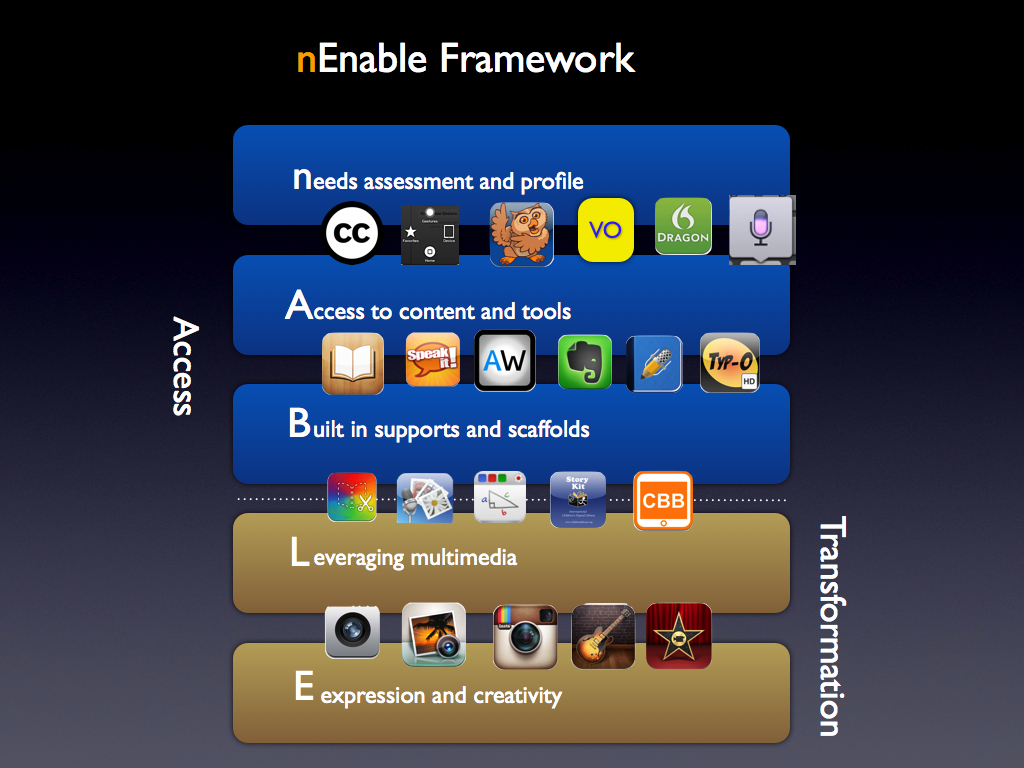
As I was traveling to Macworld 2013, where I presented a session on iBooks Author, I had some time when I was trapped on a plane without Wi-Fi (the horror!). Rather than reading the magazine in front of me, I gave into my urge to try to combine two frameworks I am really passionate about, the SAMR model developed by Dr. Ruben Puentadura and the UDL framework developed by CAST. Below is an image showing the framework I developed and some apps that address each level. This was just a quick brainstorm on a long plane ride, but I do appreciate your feedback.

SAMRandUDL008.008 SAMRandUDL.009


Update: Here is a text version that should be more accessible with a screen reader (with app and feature matching):

n: needs assessment and profile
determine current level of performance and desired outcomes.

A: access to content and tools
The technology eliminates barriers that prevent access to information

  • Proloquo2Go
  • FaceTime
  • VoiceOver
  • AssistiveTouch
  • Closed Captioning Support
  • Dictation (built-in with iOS)
  • Dragon Dictation
B: building supports and scaffolds for learner variability
The technology includes scaffolds and supports that account for learner differences.
  • iBooks
  • AppWriter US
  • Speak It!
  • Typ-O HD
  • Evernote
  • Notability
L: leveraging multimedia
The technology provides multiple means of expression.
  • Book Creator
  • Creative Book Builder
  • StoryKit
  • SonicPics
  • StoryRobe
  • Pictello
E: expression and creativity
The technology unleashes creative potential and disrupts perceptions of disability.
  • Camera
  • iMovie
  • Garageband
  • iPhoto
  • Instagram

Omnidazzle as an accessibility tool

One of the areas where I have some difficulty with my visual impairment is finding the cursor on the screen. I love that OS X  has a large cursor as one of the accessibility features. The large cursor setting can be found under System Preferences, Accessibility, Display in Mountain Lion and System Preferences, Universal Access, Mouse and Trackpad in other versions of OS X.

Large Cursor Setting in Accessibility, Display in Mountain Lion


However, the large cursor is not always enough for me, especially as my vision gets worse. I would love it if there were mouse trails or some other visual indicator to help me more easily pick out the cursor when I move it.

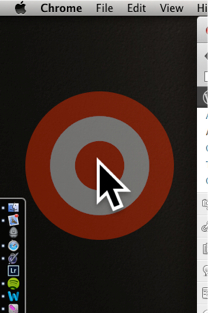
I have used a number of cursor enhancements for the Mac in the past, including Mouse Locator and Mousepose. Right now I am   trying Omnidazzle for this purpose and it is working rather well. Omnidazzle is a free cursor enhancement intended as a presentation tool to help the presenter highlight key information on the screen. By pressing a keyboard shortcut (usually Control + `) you can bring up effects such as a spotlight, highlighting the foreground window, and more. The one that I have found the most useful for me is the Bullseye one.

Bullseye effect along with large cursor in Omnidazzle

I have set this effect to bring up the bullseye when I shake the mouse. This is great, because whenever I lose the cursor the first thing I try to do it is move it around quickly to create some movement on the screen that I can pick up with my limited peripheral vision.  With Omnidazzle (sounds like it was created by Snoop Dogg, doesn’t it), a large red, bullseye will come up around the already large cursor. You can change the color, but red is one I can easily pick out.

Omnidazzle is freezzle, so check it out and let me know if you find it helpful.

Why and how to caption?

The Collaborative for Communication Access via Captioning has created an excellent video showing how real people are impacted by the lack of captioning. The title of the video says it all: “Don’t Leave Me Out”.

Don’t Leave Me Out

If you are a Mac user, I have created a couple of videos on how to caption QuickTime movies  that are available from the Tech Ease 4 All website I worked on at the University of South Florida. I caption my videos with a $99 program called MovieCaptioner from Synchrimedia.

These videos are themselves closed captioned, of course.