Sneak Peek: New Ebook on Apple Accessibility Supports for Low Vision

Out of all the amazing accessibility features built into my Apple devices, the ones that are most meaningful to me are those that are intended for people with low vision. These are the features I use most frequently since I still have some vision left and I am not a full time VoiceOver user.

To share what I have learned about these features with the rest of the educational technology and assistive technology communities, I have authored a new multi-touch book: Supporting Students with Low Vision with Apple Technology. I had hoped to have the book available on the iBookstore in time for Global Accessibility Awareness Day, but with more than 25 videos that needed captioning it took longer than I expected. I am providing a sneak peek of a work in progress available for download from my Dropbox account. A word of caution: the file is 345 MB due to the videos.

Cover of Supporting Students with Low Vision Using Apple Technology

The book explores the concept of an ecosystems approach to accessibility which I discussed in my Global Accessibility Awareness Day post. It focuses not only on the accessibility features found throughout the Apple ecosystem (on iOS, Mac, Apple TV and even Apple Watch), a number of apps to designed to meet the needs of those with low vision, and techniques for creating more accessible content for low vision readers.

I hope you like this multi-touch book and I welcome any feedback related to it: things I missed, things that need to be clearer, any feedback you wish to provide. Here is the intro video I created for it with PowToon:

Global Accessibility Awareness Day: The Need for an Ecosystems Approach to Accessibility in Education

On the occasion of Global Accessibility Awareness Day, I am excited about the many online and face to face events that will mark this important step toward ensuring a more accessible and inclusive environment for those of us who have special needs.  I will be presenting a session on the use of photography as a tool for disability advocacy as part of Inclusive Design 24, a free 24-Hour event sponsored by The Paciello Group and Adobe Systems. Photography has long been a passion of mine, and I welcome any opportunity to share how I use it as an educator and advocate to challenge perceptions of ability/disability. I will also be sharing resources and insights during a #GAADILN  twitter chat sponsored by the Inclusive Learning Network of the International Society for Technology in Education (ISTE).

I love Global Accessibility Awareness Day (or GAAD as I will refer to it from now on) but if there is one thing that I would change is the name of the event. To me it should be Global Accessibility Action Day. With many of these types of events the focus is on raising awareness of the needs of people of disabilities, as if we have not been asking for our rights for decades now (the ADA is more than two decades old, you know). GAAD gets it right by focusing on action. Organizations such as Shaw Trust Accessibility Services, Deque Systems and Accessibility Partners are offering a number of free services such as document audits, app accessibility consultations and website user testing. Many others are providing webinars and live presentations that aim at more than raising awareness by providing practical information on how to make documents, website and apps more accessible. A review of the full list of events available on the GAAD website makes it clear that this event is about more than just awareness, it is about taking the next step for accessibility.

In my own field of education, I see much progress being made but I also see a need for a more ecosystems approach to inclusion and accessibility. When I think of ecology I think about systems that have a number of parts working together as one, with the sum of these parts being greater than they are on their own.  When it comes to students with disabilities, a number of technologies are now available as built-in options on the mobile devices many of them own. While I am a witness to the impact these technologies can have on the lives of students with disabilities (having been one who used these technologies myself) I believe their impact is limited by their use in isolation rather than as part of a more comprehensive system.

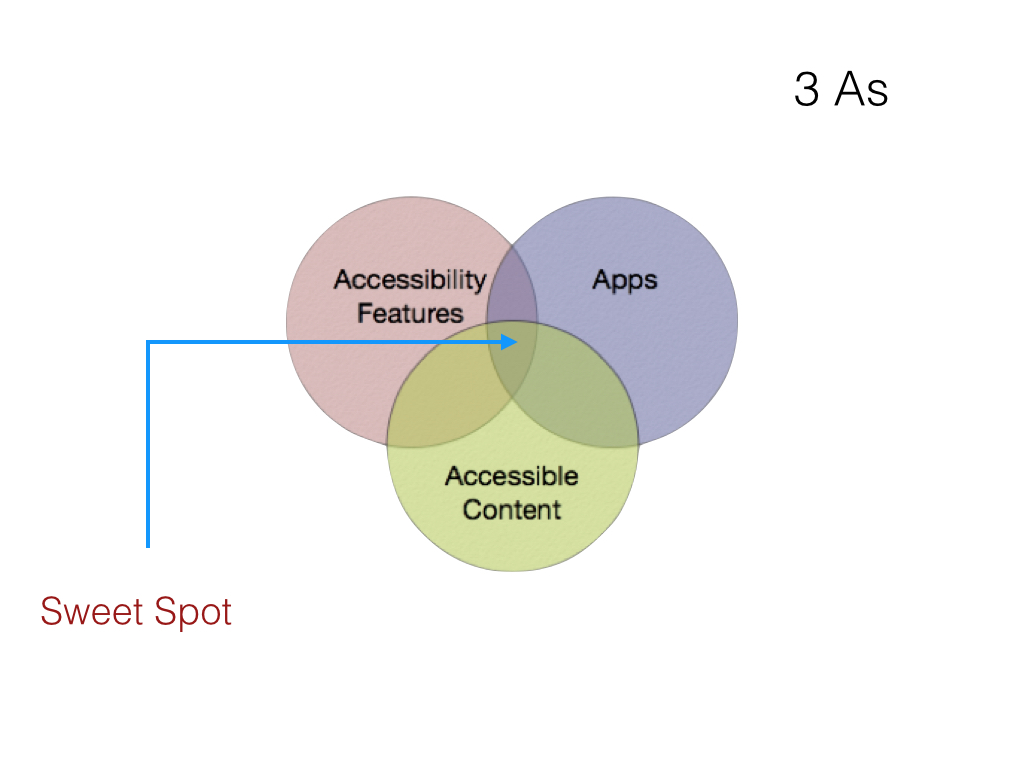
What I would like to see is a change in thinking to focus on a systems approach that addresses what I see as the three As of accessibility:

  • Accessibility Features: companies such as Apple  now include a comprehensive toolkit for accessibility that is built into the core of the operating system.  This means that when I take my new Mac, iPhone or Apple Watch out of the box it will be ready for me to use without the need to purchase or install additional software. Not only that but as my vision gets worse I know that I will be able to take my device out of the box and set it up independently, without having to wait for someone with better eyesight to help me.  These built-in accessibility features have been life-changing for me. Without them I’m not sure I would have been able to pursue higher education and complete my master’s and doctoral studies. I also would not be able to do my photography that brings so much joy and beauty into my life. Unfortunately, not all educators know about even the most basic of these features that are built into the technology their districts have spent so much money to purchase. I am often surprised when I do presentations around the country (and sometimes in other parts of the world) by how little awareness there is among educators of the potential they hold literally  in their hands to change a student’s life. We need to do better in this area of professional development to allow these tools to have an even greater impact on education for all students, not just students with disabilities but any student who struggles with the curriculum and needs additional support.
  • Accessibile Apps:  the built-in accessibility features provide a great baseline for addressing the needs of people with disabilities, but they can’t do it all. There is just too much diversity and variability for that to be the case: not just in the traits and needs of users, but in the settings and tasks where technology is used. For this reason, it is often necessary to extend the capabilities of the built-in accessibility features by installing apps that provide greater customization options. A great example is the Voice Dream Reader app. While iOS has a robust text to speech feature with word highlighting that now supports a high quality Alex voice, Voice Dream Reader allows for even greater customization. The user can adjust the color of both the word and sentence highlighting, something which cannot be done with the built-in Speak Selection feature of iOS.  For those who are blind and use the VoiceOver screen reader, the developer has done an excellent job of labeling all of the app’s controls.   A companion Voice Dream Writer app even provides a special mode for VoiceOver users to make it easier for them to enter and edit text, showing an strong commitment to usability for all users on the part of this developer. Other examples of developers who are doing exemplary work when it comes to creating accessible apps include AssistiveWare ( developers of Proloquo2Go, Proloquo4Text and Pictello, all apps with excellent support for VoiceOver and Switch Control) and Red Jumper  (developers of the popular Book Creator app). The latter added an Accessibility option for images and other objects to help students and educators create accessible content with the app. Unfortunately, these developers are still the exception rather than the rule. With too many apps, swiping through with VoiceOver results in hearing “button” over and over with no indication of what the button actually does. Worse, many of the buttons for key actions sometimes can’t even be selected. Without attention to accessibility from app developers, the accessibility features can’t work to their full potential. No matter how good the voice built into VoiceOver is (and Alex is pretty good) it does me no good if I can’t select the buttons within an app and determine what they do.
  • Accessible Content: the same problems that exist with apps that are inacessible comes into play with much of the content that is available online for students. Too many videos lack captions (or include only automatic computer generated captions that contain too many errors to be useful), and too many ebooks include images that are not labeled with accessibility descriptions  for those who can’t see them. Without these accessibility descriptions, which can be easily added in authoring tools such as iBooks Author, a blind student taking a science class or an economics class will not be able to access the diagrams and other graphics that are so often used in these fields. Again, adding in features such as accessibility descriptions allows the built-in accessibility feature, in this case VoiceOver, to work to its full potential. There are many wonderful examples of books that include accessibility, as well as resources to help educators develop their own accessible books with easy to learn and use tools such as iBooks Author. These include Creating Accessible iBooks Textbooks with iBooks Author from the National Center for Accessible Media and Inclusive Design for iBooks Author by my friend and fellow Apple Distinguished Educator Greg Alchin. For a great example of an engaging and accessible book, one need not look any further than Reach for the Stars, a  multi-touch book from SAS that makes astronomy come alive not only for blind students but anyone who wants to learn about our universe using all of their senses.

As shown by the following diagram, when the three components are present (robust accessibility features, accessible apps, and accessible content) we get a synergy that results in an even greater impact than each tool or feature can have on its own: this is the sweet spot for accessibility in education.

Three overlapping circles labeled as Accessibility Features, Apps and Accessible Content, with the spot where they converged labeled as Sweet Spot.

To ensure accessibility in education we all must work together to realize the advantages of an accessibility ecosystem: companies such as Apple and others who are building accessibility into their products, app developers and content authors. As AssistiveWare’s David Niemeijer so nicely stated in his own GAAD post when we  take accessibility into account we really are designing for everyone because we all one day get old and require the ability to customize the text size and other features of our devices to account for our aging vision and hands.

Furthermore, to quote from a recent Apple commercial, “inclusion promotes innovation.” Thinking about accessibility from the start, in line with the principles of universal design, requires us to be even more creative as we seek to solve problems of access that may someday result in usability improvements for everyone.

A great example of that is the recently released Apple Watch.  Since it has a small screen that makes it difficult to enter text, much of the interaction with the Apple Watch takes place through the Siri personal assistant. The voice recognition technology that makes Siri possible actually had its origins in the disability community, but now it  can be used to account for the constraints of a smart watch and its small screen.

The Apple Watch is also a  great example of an ecosystems approach to accessibility and  its benefits. This device includes many of the same accessibility features that are available on the iPhone and the iPad, which are the same features I can use on my Mac. What this means is that if I get a new Apple Watch I will already know how to use these features, with a few modifications to account for the smaller screen. Similarly, a blind student who has been using his or her iPhone can easily transfer the use of many VoiceOver gestures to the trackpad built into Mac laptops or the Magic Trackpad used on iMacs.

Why is an ecosystems approach like this so important? Ultimately it is because I as a person with a disability need accessibility 24/7, 365 days a year, most likely for the rest of my life (unless a cure is found for my condition). My need for accessibility doesn’t stop when I get up from my desk at home and walk out the door. I need accessibility as I order a ride from a ride sharing service from my smart phone (which has Zoom and VoiceOver built in) , as I take and share the photos that bring so much joy to my life and capture the beauty I encounter in the places I am lucky to visit (through accessible apps such as Instagram) and as I continue to develop my skills and knowledge base by reading ebooks about my field I download from the iBookstore and read with iBooks (accessible content) . For someone like me, accessibility is needed across a number of settings and situations if I am to be independent and continue to make a valuable contribution to society. Only an ecosystems approach can provide the kind of comprehensive accessibility I and many others who have disabilities need to live a fulfilling life.

New Video Tutorial: Accessibility Features of Apple TV

I love my Apple TV and use it not just for entertainment purposes but also as a learning tool that allows me to subscribe to a number of podcasts in order to stay up to date with the world of technology. Apple TV includes two great accessibility/universal design features found under Settings > General > Accessibility:

  • VoiceOver: the same screen reader that ships with Macs and iOS devices (and the recently released Apple Watch) is included with the Apple TV to provide spoken menus for someone who is blind or has low vision. You can adjust the speaking rate of VoiceOver, or set it to use a pitch change to indicate when you are navigating within the same screen or moving away to a different screen.
  • Closed Captions: as on iOS and OS X, the captions can even be customized with either preset styles or by creating your won custom styles. You can customize the text (font, color, text size), background (color and opacity) and even add special text styles such as highlighting or a drop shadow.

An accessibility menu is available as a shortcut  for turning these features on and off without having to go back into Settings. Once you enable it in the accessibility settings, this accessibility shortcut involves holding down the Menu button on the Apple TV remote until the menu pops up on the screen with options for VoiceOver and Closed Captions (as well as the usual function which is to Return to the main menu).

In addition to the included remote with tactile buttons, Apple TV can be controlled with the free Remote app for iOS. This app supports the VoiceOver and Switch Control accessibility features for iOS. You can even have VoiceOver with Alex(male voice) on the iOS device and Samantha (female voice) on the Apple TV so you can tell them apart.

Here is a video from my YouTube channel that provides an overview of the accessibility options included with Apple tV:

We Have the Will, Do You?

I generally devote my posts on this blog to the sharing of videos, tips and other resources related to accessibility and universal design, rather than addressing political issues related to disability and society. Today I am going to make an exception.

As I was going through my Twitter feed and looking at posts from my excellent PLN, I came across the following Tweet from star ed tech blogger Vicki Davis:

You can read the referenced blog post for yourself, but the gist of it is that we now have the technology to allow students who have special needs to shine if only we had the will to take advantage of it. I  agree with this idea (we do have some amazing built-in accessibility features that every student, not just those who have special needs, can use to enjoy greater access to information). You can learn all about these technologies by watching the many videos on my YouTube channel.  However, what I had a problem with was the assumption the post was based on, which the author makes plain early into the piece:  “Like Hawking, many students are trapped in the prison of a body that does not unleash their capability.”

For those of you who are not familiar with it and don’t have to deal with it on a regular basis (as I do) this is an example of the “medical model of disability” at work. This is a model that holds that people with disabilities experience life through a “broken” body that has to be normalized through the use of modern medicine (through pills, surgeries or prosthetics ). Now, the decision to avail yourself of any of these interventions is a personal one and I try not to judge anyone who makes such a choice. What I do take issue is the narrative of disability that such a model supports, a narrative that revolves around shame and pity (as mentioned in an excellent comment to the post submitted by Anna, a parent of a child with disability).

On the one hand, I am happy to see that the mainstream ed tech community is finally starting to engage with this topic and recognizing the usefulness of assistive technology and accessibility for everyone. When popular and influential  bloggers like Vicki Davis focus on a topic it brings attention to it because of their large audience  (she has more than 98,000 followers on Twitter, about 95,000 more than me if you are counting). On the other hand, when popular bloggers share messages based on faulty assumptions, those assumptions are given even more life and staying power.

Fortunately, one of the beauties of blogging  is that people can engage in dialogue (sometimes civil and sometimes not)  through comments. Unfortunately, not everyone reads the comments and most leave the blog only with the ideas presented in the post as their takeaway. In the case of this post, I was happy to read a very articulate response from Anna that called out the author on her assumptions, and did so in a very respectful way. I hope that I am doing the same here. My intent is not to single out Vicki Davis. I follow her and see all the good she does through her work. My intent is to show that the ed tech community as a whole needs to change its assumptions and long-held beliefs about people like me. The same community that creates and uses many of the tools that can do the most to empower people with disabilities is also one of the most exclusionary when it comes to disability. If you want to see that at work, just submit a conference proposal that mentions universal design, accessibility or similar terms and see how well that goes. But I digress, that’s a topic for another post.

As Anna suggests, there is another way of thinking about this issue, one that is inspired by a different set of assumptions. Instead of focusing only on people with disabilities and their bodies, a “social model of disability” focuses on the environment as the source of significant barriers for people like me. For example, one of the major issues I deal with is the lack of transportation in my home area. If I had access to good transportation, my ability to get to a job, to doctor’s appointments and even to leisure activities like going to the gym would not require so much planning and effort.

Rather than “letting the caged bird sing” from a social model perspective we wouldn’t build a cage in the first place. The social construction of disability  is at work when a class website is built without any thought for how a parent with low vision (not just a person with a disability, but also someone who is older or who has had an eye injury) can use it, or when a classroom has too little space between tables for someone who uses a wheelchair to get around the room comfortably and without too much effort. People with disabilities are too familiar with the social construction of disability. It is often those who don’t have disabilities who are not, because as Vicki Davis states in a response to Anna’s comment, they don’t have to live it every day.

I agree with Vicki Davis on a key point. It is a matter of will. But it is not a willingness to take advantage of technology that will make a difference going forward. Rather it will be a willingness to question assumptions about the nature of ability/disability. No matter how much technology there is (and how good it is) as long as people’s thinking doesn’t change then we are not really moving the needle on this issue. People with disabilities recognize the social construction of disability (as evidenced by years of struggle leading to legislation such as the Americans with Disabilities Act).  The question is does the rest of society (including the ed tech community)  have a similar willingness to reflect on and change the way it portrays and discusses disability. It is much easier to retreat into “inspiration porn“. It takes a lot more will to do the long term work of changing  assumptions through ongoing reflection. Will you have that will?
New webinar setup with Reflector, iPhone and iPevo Stand

I have had great success using Reflector on my Mac to mirror the screen from my iPad when I do webinars. However, after some feedback  I received from a recent webinar on switch access I decided to look into improving my setup.One of the viewers suggested that I show my interaction with the switch interface (the tapping of the buttons, etc.) along with the mirrored iPad screen. I agree that this would be helpful when showing off not only Switch Control but also VoiceOver. With VoiceOver, there are many gestures (flicks, swipes and the like) that don’t translate well during a webinar if you are only mirroring the device screen. I had a chance to try a new setup when I did a webinar on VoiceOver and Zoom this past week, and I was very pleased with the results.

I took advantage of Reflector’s ability to mirror multiple devices as follows:

  •  Device 1: iPad mini mirroring the screen to Reflector as usual.
  • Device 2: iPhone mounted on an iPevo iPhone stand ($69) and running the iPevo presenter app.

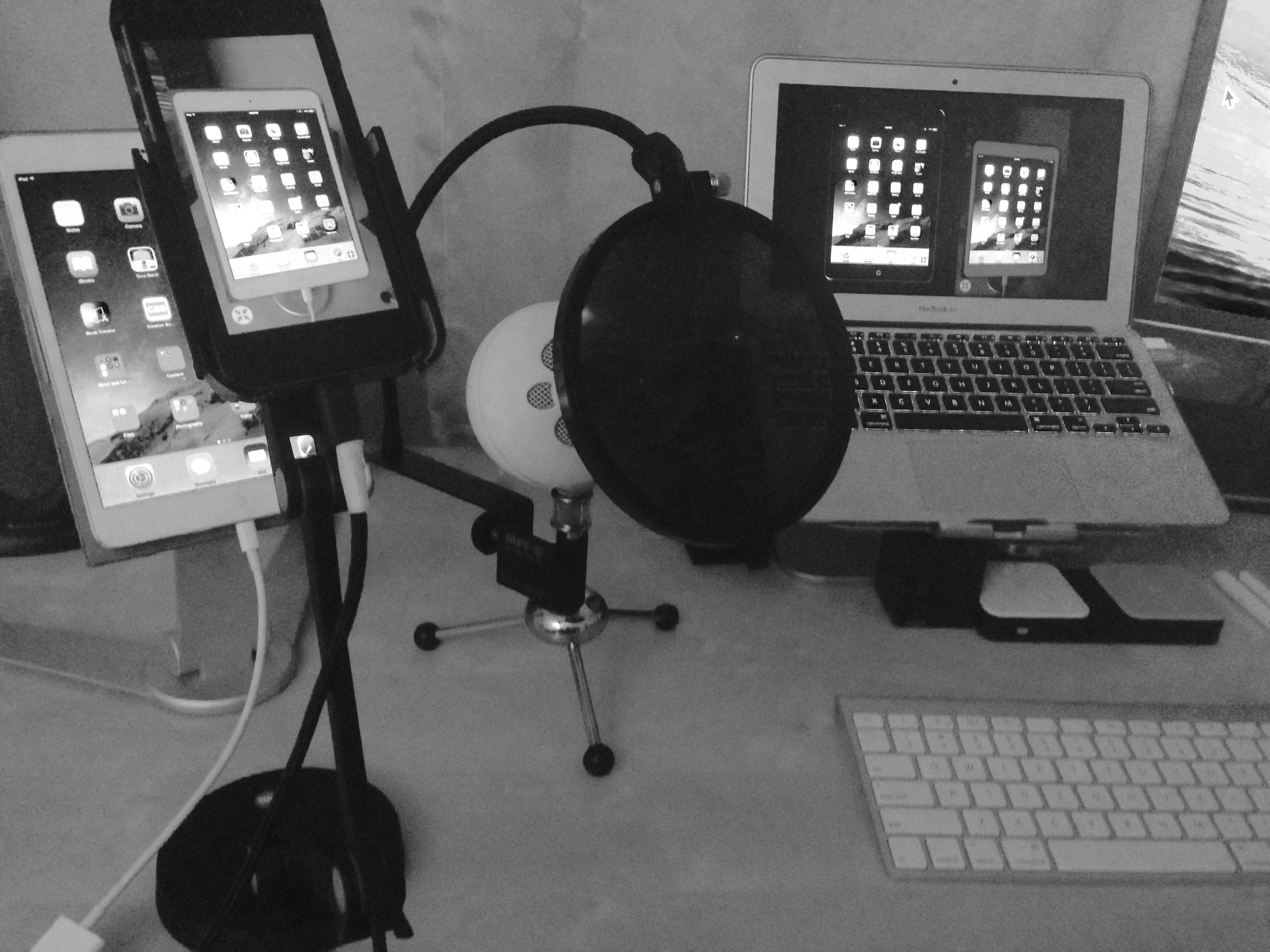
The iPevo presenter app is a free app designed for use with iPevo’s iPhone stand. It has the option to hide all controls and show a very minimal interface so that there are no distractions. Below is a photo of my setup where you can see the split screen effect I got on my computer display, which I then shared with my webinar participants using the screen sharing feature of our webinar platform.

Webinar setup: iPad mini and iPhone mounted on iPevo stand on the left, Mac showing mirrored devices on the right.

I tried a similar setup with iPevo’Ziggi HD document camera, but I found it could not keep up with the motion whenever I performed a gesture on the iPad with VoiceOver. In the end, the iPhone camera did much better in keeping up with the motion of my hands during the VoiceOver demos.

My one concern is that having the two screens up could be distracting, so we’ll see what the feedback says on that point. For now I plan to use this setup for any of my upcoming webinars that involve VoiceOver or Switch Control.

Update: iPevo suggested lowering the resolution while using the Ziggi HD camera to see if that would work better for capturing the motion. I found that a resolution of 1024X768 worked well on my 11 inch Macbook Air. I also made sure to let the camera focus on my iPad screen and then selected Focus Lock in the Presenter app on my Mac (pressing the letter M will also lock focus). I will probably use that setup when doing a Switch Control webinar where it is nice for people to see the hardware and the iPad at the same time. Thanks for the suggestion, iPevo.

New Video Tutorial: Overview of Chrome OS Accessibility Features

Although I personally use Apple product in my day to day work, it is great to see that accessibility is being considered by most of the industry when it comes to the devices available for students. A great example is the Chromebook, which is a low cost device that is very popular in education right now. The Chromebook runs Chrome OS, a streamlined operating system that emphasizes access to cloud-based tools and resources. In this video tutorial, I provide a quick overview of the accessibility features built into Chrome OS, including: a screen reader (ChromeVox), a screen magnifier, an option for enlarging the cursor, a high contrast mode and more.

Apple Watch Review Roundup and Thoughts

With the Apple Watch finally arriving in stores for trial and then initial deliveries starting on the 24th of April, a number of reviewers have had hands-on time with the device and shared their first impressions. These include Steven Aquino at iMore and David Woodbridge at AppleVis, both of whom have done an excellent job with their reviews. Apple has also created a nicely laid out page describing the key accessibility features that are available on the Apple Watch, which it divides into two categories: vision and hearing. To summarize, the Apple Watch continues Apple’s excellent track record of including accessibility and universal design features on all of its new products. On the new Apple Watch, these features include:

  • The VoiceOver screen reader
  • Zoom screen magnification
  • an Extra Large Watch Face option
  • Large Dynamic Type and Bold Text
  • Reduce Motion and Transparency
  • Grayscale and On/Off Labels for those with color difficulties
  • Mono Audio and balance control for those with hearing loss
  • an Accessibility Shortcut (triple-clicking the Digital Crown) to enable accessibility features such as Zoom and VoiceOver

Features can be enabled or disabled on the device itself or on the companion app that runs on the iPhone. From David’s review it looks like you will find learning the accessibility gestures of Apple Watch fairly easy if you are already familiar with these features on the iPhone or iPad. For example, with Zoom instead of using three fingers to zoom in/out and pan around the display, you use two fingers to account for the limited screen real estate.  The Zoom level can be adjusted in much the same way you used to on iOS before a slider was added in iOS 8 but instead of double-tapping and holding with three fingers and then sliding up or down, on the watch you do it with two fingers. Similarly, for VoiceOver you can flick left or right to move by item, move your finger over the screen to navigate by touch or double-tap with one finger to activate a control or launch an app. This is one of the things I have always appreciated about Apple’s approach to accessibility. What you learn on one device usually translates to the use of other similar devices, reducing the amount of time it takes you to become proficient with the accessibility features even when it is a new product category like the Apple Watch. 

 Surprisingly, there is little mention of any features for those with motor challenges on the Apple page for Apple Watch or the reviews I have read. This is surprising to me given the fact that the Apple Watch relies on the Digital Crown as the main way of interacting with the device. People with poor motor skills may find the Digital Crown to be difficult to operate, though initial reviews indicate that it is much easier to operate on the Apple watch than on traditional analog watches.  Sure, the user can use Siri to control the device with voice recognition, but Siri may not work accurately in environments with a lot of ambient noise, or for people who have speech difficulties. 

 One area that has not gotten as much attention in the reviews I have read is the potential for this device as a communication aid. With a press of the side button, the user can bring up a list of key people (parent, caregiver, etc.) to communicate with not only with a phone call or a message, but with sketches (quick drawings that animate on the other end if the other person also has an Apple Watch). For people with autism and other related disabilities, this more visual way of communicating could be very helpful. Taps are also supported for custom messages between two Apple Watch wearers who have hearing difficulties (the taps are felt on each end of the conversation as a silent tap pattern on the wrist). The true potential for the Apple Watch as a communication device will probably not be known until the app store for the device matures. One app I would love to see is one where the user who has a hearing loss can hold up the watch to another person’s face and have the audio amplified on a Bluetooth headset (similar to the Live Listen feature for hearing aids on the iPhone). 

Then there is the integration of the Apple Watch with environmental solutions Apple has developed: Apple Pay, HomeKit and iBeacons. As Steven Aquino suggests, Apple Pay and Apple Watch will make payment at places of business easier for those with motor difficulties, who will not have to fumble around trying to get the phone out of their pockets or a handbag to pay. The same goes for checking in for a flight at the airport with Passbook. Similarly, an app for Starwood Hotels will let you open your hotel room from the watch. HomeKit could also make the Apple Watch the controller for a number of devices, from lights to the alarm, the garage door and more (such as the Honeywell Lyric app for controlling a thermostat). As for iBeacons, their integration with the Apple Watch could be used to develop educational activities that add a kinesthetic component to learning (hints or prompts that are activated based on the user’s location in relation to a classroom-based beacon and more).

I believe the App Store will be key to unlocking the full potential of this new product, and if the iPhone is any indication the app store will grow rapidly, especially after Apple holds the World Wide Developer’s Conference this summer.

As for me, I will probably not be getting this first version of the Apple Watch. I want to wait to see how the battery life holds up, as this is an important consideration for an accessibility device you need to use for an entire day. Any device, no matter how fancy it is, will be of limited use if the battery dies when you most need it. If history holds, future versions will be better in this area. The Apple Watch is also expensive at $350 (for the Sport version). As a person with a limited tech budget I have to think about which device will have the most bang for the buck for me. As a photographer, that means that for me that device remains the iPhone, which I hope to upgrade as soon as my current contract runs out later this fall. Wouldn’t it be nice if in the future you could get both of these devices as a bundle (with a discount for buying this way). I wouldn’t hold my breath on that one…

New YouTube Video: Picto4Me Google App

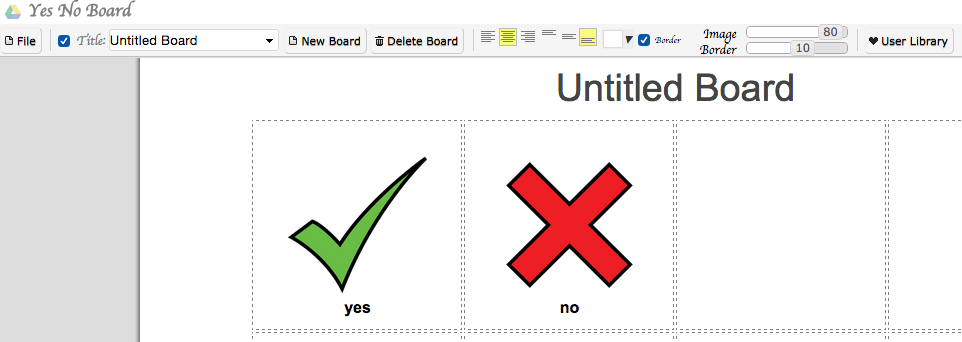
Screenshot of Picto4Me app with simple Yes/No Board

As I was preparing for my Lunch and Learn with MACUL’s special ed folks today (I will be a featured speaker at MACUL in March), I came across a neat Chrome App that I want to share with all of you. The name of the app is Picto4Me (free). What it does is let you create simple communication boards that have speech support (looks like it’s using Google’s Text to Speech engine) and scanning support. It is a very easy to learn tool and while it may not be as sophisticated as some of the commercial solutions out there it can be a nice solution for those implementing Chromebooks.  Here is a quick video overview of this app:

What do you think of this app? Let me know in the comments.

Accessibility Options in Voice Dream Writer App

This week, Winston Chen and the Voice Dream team released a new Voice Dream Writer app,. I am highlighting the new app here not only because Voice Dream Reader is one of my favorite apps for students who need reading supports such as text to speech, word highlighting and customized text, but also for the attention to accessibility from the Voice Dream team in this new app. Not only are the controls and the interface in the app nicely labeled for VoiceOver users, but there are even a few features specially designed to make things easier for VoiceOver users.

Screenshot of Voice Dream Writer interface on iPad with VoiceOver controls highlighted.

When VoiceOver is turned on the app can recognize this and adds three buttons for editing text to the interface (they appear in the toolbar located just above the onscreen keyboard, on the left side). These buttons are:

  • Cursor:  allows the user to move the cursor by flicking up or down with one finger.
  • Cursor movement unit: changes how the cursor movement takes place by allowing the user to choose from characters, words or sentences.
  • Select text: selects text based on the cursor movement unit. For example, flicking up with sentences as the cursor movement unit will select the text one sentence at a time.

All of these controls are adjustable. A flick up or down with one finger will change the value (for the cursor movement unit) or navigate to/select the next item (for the cursor and select text buttons).

A three-finger swipe gesture is also supported for cursor movement and selection: a three-finger swipe up will move the cursor to the beginning of the document and a three-finger swipe down to the end, and three-finger swipes up or down will select the text from the cursor position to the beginning or end of the document.

Another nice feature of the app is the way it makes it easy to find misspelled words by opening Tools in the upper right and choosing Find Misspelled Words. You can then flick down with one finger to navigate the misspelled words in your document. When you get to a word you want to fix you have two options: you can double-tap with one finger to edit it with the onscreen keyboard or you can swipe from the right with three fingers to use the Word Finder with a phonetic search. The phonetic search will bring up a list of words that closely match the one that is misspelled in your document.  You can then choose the correctly spelled word from the list and double-tap with one finger to make the correction.

I did a short video to demonstrate some of these options in the Voice Dream Writer app. I hope you find it helpful. For more information about the app, make sure to check out the Voice Dream website.

Switch Access now available in Android

After waiting a couple of weeks for the elusive Android 5.0 Lollipop update for my 2013 Nexus tablet, I  decided to do things the hard way using Google’s instructions for loading a factory image. If you know how to open a Terminal window and issue a few commands, you should not find it too difficult to load the factory image, though I did run into a few roadblocks that I was able to address with quick Google searches. Since I am on a Mac, I had to modify some of the commands a bit, but that was not too hard to do and after a couple of tries I was able to get the 5.0 image loaded on my device.

According to this article and video on Android Central, most of the accessibility features for Lollipop (Android 5.0) have been carried over from 4.4 KitKat. However, the article glosses over a significant addition to Android accessibility: Switch Access. Switch Access is not intended for those with visual impairments, as stated in the Android Central article. Rather, it allows people with physical and/or cognitive limitations to use a touch screen device with assistance from an adaptive switch. Google’s own description does a much better job of explaining how Switch Access works:

Switch access enables you to interact with your Android device using one or more switches that work like keyboard keys. Switch access can be helpful for users with mobility limitations that prevent them from interacting directly with the Android device.

I had a chance to try out the new Switch Access with one of my favorite switch interfaces, the Blue 2 from Ablenet (which by the way has a great guide on how to set up Switch Access in PDF format). While Switch Access is nowhere near as robust as Switch Control on iOS devices, kudos to Google for taking an important step that will ensure even more people can enjoy the use of Android phones and tablets. The fact that two of the major mobile platforms now have switch access as an option is a big step forward for ensuring accessibility for all users.

Switch Access in Android 5.0 only has  few options for configuration in its current incarnation. For example, you are not able to change the appearance of the scanning cursor, which is a very faint green outline around the currently selected item. You can’t  increase the size of the cursor either, and I found it to be difficult to see, especially when it appeared against certain backgrounds. It would be nice if there were a large cursor option (along with the ability to change the color for those who can’t perceive green that well) but I’m sure these options will be added over time. You also have few timing options. You can only adjust the speed at which the cursor moves when you are in the auto-scanning mode, but options such as hold duration, or pause on first item, which could be helpful to certain users, are missing. Again, I see this version of Switch Access as a first step in the right direction and I’m sure these options will be added over time.

Switch Access in Android 5.0 Lollipop can be used in two different ways: you can use it with a single switch by turning on the auto-scanning option, or you can add multiple switches and assign different actions to each of the switch buttons. With single switch use and auto-scanning, pressing the switch will start the scan and pressing it a second time will make a selection. With multiple switches, you can assign different actions to each switch, such as “next” to move the cursor when you press one switch and “click” to make a selection when you press the other. With additional switches, you can assign actions such as scrolling forward or backward, going to the home screen, opening notifications, settings and going to recent apps.  While switch access is running you can still interact with the touch screen in the same way you would if switch access were not turned on. I could see that being useful when you need to work with someone who is not familiar with switch access and how it works.

I created this brief video to demonstrate how switch access is configured and how it works in Android 5.0 Lollipop. For mirroring I am using the Mirror beta app, which is sending a stream I can display and record on my Mac with Reflector and Screenflow. I wish you could remove the watermark (I’m even willing to pay for this free app so that the watermark doesn’t get in the way) but I really like that you can show your taps and touches with this app. It would be really nice if you could do this on iOS  devices.