Adding YouTube videos to iBooks
One of the big concerns many educators have about iBooks is the size of the files created by iBooks Author. Much of that size is due to the many videos and other interactive content that can be added to the iBooks authored with iBooks Author. In fact, many of the textbooks that are available for purchase from the iBookstore are more than 1GB in size. With the base model of the iPad in most schools only having 16GB of space, you can see why this would be a problem. Just a few textbooks would leave students with little space to add apps and the other content they might need.
Fortunately, classwidgets.com has created an easy way to add an HTML widget in iBooks that can reference a YouTube video. Since the video file is not actually part of the iBook (but is instead a link pointing to a video hosted on YouTube), this technique can dramatically reduce the size of iBooks. To learn more about adding videos in iBooks Author, please watch the video below which includes the YouTube widget technique:
Accessibility in iBooks 2 and iBooks
Today’s post will focus on some of the lessons I have learned about the accessibility of ebooks created with iBooks Author and accessed on the iPad with iBooks 2.
I was pleasantly surprised to learn that Apple included an option for adding a description for images and other objects when it released iBooks Author. I don’t remember this feature being discussed much at the event where Apple unveiled iBooks 2 and iBooks Author, and only found out about it while test driving the software.
An even better surprise was learning that closed captions are now supported for any video that is embedded in an iBook. This is a great feature that will benefit a range of different learners (not only those with hearing disabilities). I think these new accessibility features of iBooks Author and iBooks 2 will go a long way toward facilitating the adoption of iBooks in the schools by meeting legal requirements for accessibility set by the U.S. government (for a summary of the legal requirements, please see the Dear Colleague letter and the follow-up clarification from the U.S. Department of Education).
Apple has published a support document with advice for making iBooks created with iBooks Author more accessible. However, the article focuses mostly on the accessibility of images and other visual content, and does not include any information about closed captions. I would add a couple of bullet points to the advice given in the Apple support document:
- the article suggests adding descriptions for all images, including background images. Web accessibility guidelines state that decorative images should have a null or empty alt attribute so that they are skipped by a screen reader, but there is currently no way in iBooks Author to indicate that an image should be skipped by VoiceOver on the iPad. In my testing, I found that when you leave the description field for an image empty in iBooks Author, VoiceOver will read the entire file name when it comes across the image in iBooks 2. This is a problem because most people don’t use very descriptive file names before they add their images to a document. In my test iBook, I forgot to add a description for one of the placeholder images included in the iBooks Author template I selected. When I accessed the iBook on my iPad, VoiceOver read the following: “1872451980 image”. Imagine how confusing this would be to someone who is blind and relies on the VoiceOver screen reader to access content in iBooks. For the time being, I would suggest following the guidance from Apple and marking up all images, including those that are used for decorative purposes, but I would recommend marking up decorative images (those that don’t add any content that is essential for understanding) with the word “Background” in the description. By default, VoiceOver will say the word “image” so it is not necessary to add that to the description. While it would be better for the image to be skipped by VoiceOver if it is not essential, I would rather hear a quick, single-word announcement that is much easier to ignore than a long number read aloud in its entirety by VoiceOver, or an unnecessary description for an image that does not add in any way to my understanding of the content.
- as much as possible, image descriptions should focus on the function of each image rather than its visual appearance. Writing descriptions (or alternative text as it is more commonly known in the web accessibility world) is as much an art as it is a science, and much of it is subjective. There are many sites that provide information on how to write good alt text for images on websites, but I have found very little guidance on how to write descriptions for other online content such as ebooks. My recommendation would be to focus on three C’s when writing descriptions for images in iBooks Author: Context, Content and Conciseness. First, I would ask myself if the image is properly described in the surrounding text. If it is, then it might be more appropriate to mark it up as a decorative image (“Background”). Next, I would ask myself “what information does this image convey?” and focus on the key idea or concept supported by the image rather than its visual details. There could be a few exceptions where you might need to focus on the visual details of the image, but these cases should be the exception rather than the rule. The final consideration is to keep the description as brief and concise as possible. I would try to keep it to no more than 8-10 words if possible.
The second aspect of accessibility supported in iBooks Author is closed captioning. If a movie added to an iBook in iBooks Author has been captioned, you can view the captions in iBooks 2 on the iPad by going to Settings, Video and making sure Closed Captions is set to On. If you know a file has been captioned and you don’t see the captions on the iPad, you may need to go into the Settings app and turn the captions off and then on for the captions to show up. This appears to be a bug that will likely get fixed in a future update to iBooks or IOS.
To create a captioned file, I have found that a workflow using MovieCaptioner and Compressor has worked well for me. I like MovieCaptioner for creating the captions because it is affordable and easy to learn. To learn more about how to create captions with MovieCaptioner you can view this tutorial I have made available on the Tech Ease website at the University of South Florida.
The only difference with my current workflow is that rather than exporting a captioned QuickTime video file from MovieCaptioner I’m only using the software to create the SCC file that has the caption text and timecodes. I then use Compressor to make sure the video file is in the correct format for the iPad and to add the captions. I found that when I exported the movie from MovieCaptioner I would get an error message in iBooks Author and the software would refuse to import the movie. Once I have exported my SCC file (Export > SCC in MovieCaptioner), I use Compressor to combine the two as follows:
- Open Compressor and choose Add File from the toolbar, then locate the desired video on your hard drive.
- In the Settings pane (Window > Settings) choose the Destinations tab, then find Desktop (or your preferred destination ) and drag it into the Batch window.

- Switch to the Settings tab and choose Apple Devices, H.264 for iPad and iPhone, then drag that setting on top of the destination in the Batch window.

- With your movie selected, open the Inspector (Window > Inspector or click the Inspector button on the toolbar), select the Additional Information tab and then Choose to find the SCC file on your computer.

- Select Submit to start the export process.
Once your movie has been exported from Compressor you should be able to drag it right into your iBook in iBooks Author to add it as a widget. As with images, make sure you provide a description in the Inspector.
Students with disabilities have traditionally had a difficult time with access to textbooks. iBooks Author provides a platform for making textbooks more accessible for all learners as long as a few accessibility principles are kept in mind. What an exciting time to be working in educational technology and accessibility!
2012: The Year I Quit Photography?
Well, not quite. But it will definitely be the year I make a major transition in my photography. As I will explain below, 2012 will be the year that I begin to take most of my photos with my iPhone. Since I purchased my iPhone 4S this fall, I’ve been using it more and more as a replacement for my Nikon D3100 DSLR camera. The improved camera specs of the iPhone 4S (8 megapixels at F2.8), along with the new features in IOS 5 (such as quick access to the Camera app from the home screen, the ability to use the volume up button to take a photo and VoiceOver compatibility) make the iPhone the ideal device to “capture the moment” for someone like me. As Chase Jarvis has stated, it is the camera that’s always with you, always at the ready to document those fleeting moments in life.
However, it’s not only the convenience and ease of use of the iPhone that’s drawing me away from using a traditional camera to capture images. As most of you reading this know, I have a visual impairment and I’m slowly losing my vision to a condition called retinitis pigmentosa, or RP for short. At the moment, I have less than 10 degrees of vision left (less than 20 degrees qualifies you as being legally blind). RP leads to progressive vision loss starting with peripheral and low light vision. In my case, my low light vision is what has been most affected by my RP, but the usual closing in of the field of the vision is also there.
I’ve been lucky that my progression with vision loss has been pretty slow, but the last few times I’ve gone out to shoot with my camera, I’ve noticed some changes in my remaining eyesight. It’s ironic that it is photography that is helping me judge these changes in my vision. I’m not sure if these changes are really there or if it’s just my mind playing tricks on me. Much of what I’ve read about RP states that people with the condition lose most of their peripheral vision around the age of 40, and guess what, I turn 40 in a few days. So, maybe it’s all in my mind, but the last few times I’ve gone out with my camera I’ve ended up with some major eye fatigue and pain afterwards. I think what’s happening is that since I can’t see that much of the frame through the viewfinder, I’m having to move my eyes a lot to make sure I have framed the shot properly. All of this eye movement is probably fatiguing my eye muscles, so that when I get home I have pain in my eyes and the area around them. It usually takes a few doses of pain relief medicine and some warm compresses for the eye pain to subside, and I would rather avoid it if at all possible.
I love photography, and I would hate to give it up. However, when I got into this hobby I knew that the day would eventually come when my vision loss would make photography really difficult. I have no regrets for having spent a considerable amount of money on my DSLR and my lenses and other accessories over the last couple of years. I would not give up the joy that the hobby has brought me over that time. My photography has allowed me to experience a lot of beauty around me that I would normally miss with my own eyes (the camera has a far better range of vision than my own eyes). I also saw photography as a challenge, not only for myself but also for all of us who have visual impairments. I have always enjoyed the expression on people’s faces (when I can see them) when I step up to a spot with my white cane and pull out a camera to take a photo. I know they look, and I know they probably ask themselves “wait, isn’t he blind, why is he taking a photo?” If I have forced anybody to confront their preconceived ideas of the meaning of blindness and disability, then it has been all worth it to me. I can continue to make a similar statement through my use of the iPhone as a video and still camera.
So the thought that has been on my mind for the last few days of 2011 and the first few of 2012 is, where do I go from here? Well, I would say that for 95-99% of the time I will be using the iPhone to take photos. The large, bright, sharp display on the device will make it easier for me to frame shots without having to stress my eyes as much. I also plan to use a trick I recently learned that makes it easier to take a photo by pressing the center button on the Apple headphones. I’ve looked at other options, but for now the iPhone appears to be the best one for me. The wide selection of apps with filters also means that even if I don’t quite get a picture right, I can apply a few filters and turn my failures into “creative experiments.” In some ways, I find not having to know so much about my camera sort of freeing, in that I can now focus on getting the best composition and less on what my camera is doing. In some ways, that’s exciting.
My DSLR camera does have a LiveView mode that allows you to use the LCD screen to frame a shot, but that mode is very slow (defeating the purpose of having a DSLR) and it is difficult to get sharp photos if you’re not using a tripod. Having said that, I have no plans to sell my camera and lenses. I could still use the LiveView mode for recording the videos I use in my tutorials on mobilelearning4specialneeds (after all, video is the reason that mode is in the camera in the first place). I could also use the camera for some brief shoots in a favorable lighting conditions. Limiting my time using the viewfinder will be the key, as will be making sure I take frequent breaks to let my eyes rest in between shots. At the very least, I will keep my camera and lenses as a nice present for my daughter when she gets older (though I’m sure there will be much better technology for her to choose from at that time).
I’m so grateful to Apple for taking the iPhone in the direction that it has by making it such as great portable camera (it is now surpassing traditional point and shoot cameras in the number of uploads on Flickr, one of the most popular photo sharing sites). Without the iPhone 4S, I think 2012 really would be the year I end my journey as a photographer. The way I see it, without digital I would have never gotten into photography in the first place (too costly considering the number of photos I have to take for a few good ones to turn out), and without the iPhone I would not be able to now continue in the hobby. It has been a beautiful journey with its usual ups and downs (times when I have gotten really frustrated when I couldn’t take the photos I wanted to, either because of my lack of technical expertise or the limitations of my eyesight), but I wouldn’t change a thing. There is a saying well known to those who follow Apple, “here’s to the crazy ones.” Well, I guess photography helped me see myself as one of those crazy ones who can change the world one small step at a time. It is crazy for someone with my kind of visual impairment to invest the money and time I have in pursuing a hobby like photography, but I hope that my crazyness has inspired somebody else to take on their own crazy adventure into whatever hobby fills them with joy and passion.
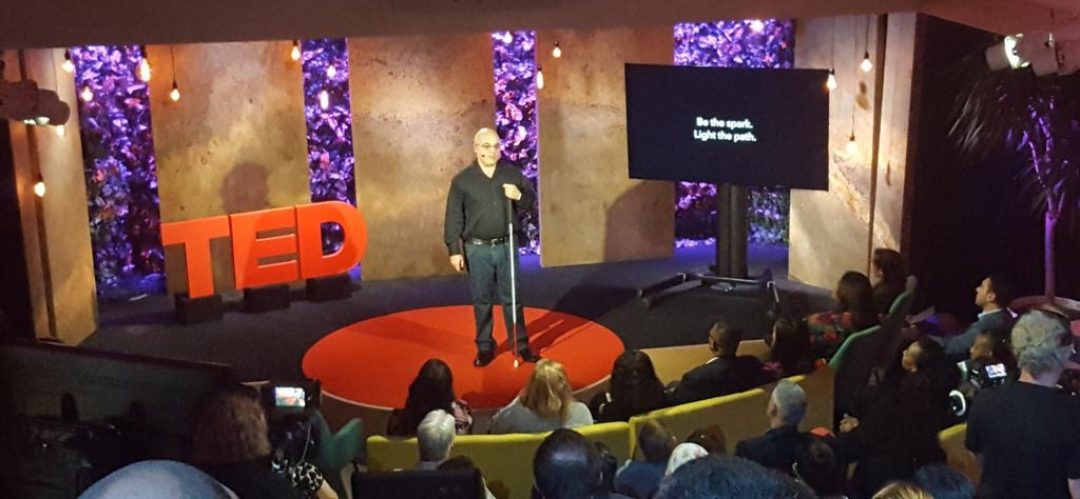
This long blog post is really the inspiration for the video I submitted for my application to the 2012 ADE Global Institue in Cork, Ireland, which is available below:
VoiceOver and Dictation on iPhone 4S
I finally got an iPhone 4S after waiting in line for almost two hours at my local Apple Store. Entering text with VoiceOver is a lot easier on the new iPhone because I can now use the dictation feature available with the onscreen keyboard. To use dictation with VoiceOver, I move my finger on the screen until I find the dictation button, then double-tap with one finger anywhere on the screen and start my dictation. When I’m finished, I can double-tap with two fingers or move the phone away from my face and it will stop the dictation. This is such a great feature that will be a huge productivity boost for those of us who use VoiceOver on IOS devices. This quick YouTube video shows how the feature works:
The website Mac OS X Automation has a great tutorial on how to use some of the new text to ePub automator actions that are available in Mac OS X Lion, and they have even put together a few automator workflows to make the process easier. I was inspired by the information they had on their website to see if I could create my own ePub document using the information they provided, but I added a twist: I added a recording of the text at the beginning of each chapter and this recording was created using the excellent Alex voice available with the Text to Speech feature in Mac OS X. The tutorial is now available on YouTube (and it is closed captioned). I think having an audio version could be beneficial for students with learning disabilities by providing the content in another modality. While the iPad and other IOS devices already include a great screen reader in VoiceOver, the voice available on those devices is not as good as Alex is, so this is why I decided it might be a good idea to provide the text to speech recording created on the Mac. Along the way to making this tutorial, I also learned about new automator actions for converting video and audio files into the correct formats for ePub (and iTunes U). To use these actions, select your file(s), right-click on them and choose Services, Encode Selected Video (or Audio) Files. For audio this will result in an .m4a file saved to the same location as the original, and for video the format of the converted file will be .m4v.
Overview of new accessibility features in IOS 5
With IOS 5, Apple has introduced a number of features to make their mobile devices even more accessible to people with disabilities:
- VoiceOver enhancements: IOS 5 includes an updated voice for VoiceOver, the built-in screen reader for people who have visual disabilities. I have found the new voice to be a great improvement over the old one, especially when reading long passages of text in apps such as iBooks. Another improvement is that the triple-click home option is set to toggle VoiceOver by default. Along with the PC-free setup introduced with IOS 5, this small change has made it possible for someone with a visual disability to independently configure his or her IOS device out of the box, without any help from a sighted person. The Mac-cessibility website has an excellent overview of the many new changes in VoiceOver that I highly recommend reading.
- Camera app compatibility with VoiceOver: this is a neat feature that will make photography more accessible to people with low vision and those who are blind. With VoiceOver on, if you launch the Camera app it will announce how many faces are in the frame. In my testing this worked pretty well, and I’ve used it successfully on the iPad and the iPod touch. It should work even better on the iPhone, which has a better sensor and optics. Combined with the ability to turn on the camera app from the lock screen on some devices (iPhone and iPod touch) by double-tapping the home button and the fact that you can use the volume up button as a shutter release, Apple has done a lot to make photography more accessible to people with visual disabilities.
Speak selection (text to speech): This is one of my favorite features introduced with IOS 5. It provides another modality for students with learning disabilities who can benefit from hearing the text read aloud to them. To use it, go into Settings, General, Accessibility, tap Speak Selection and choose On. Once you’ve enabled this feature, you can select text in any app and a popup will show the option to Speak the text using the VoiceOver voice. Note that you can control the speaking rate for the speak selection feature independently from VoiceOver.- Balance controls for audio: In addition to mono-audio, which combines both channels of stereo audio into a single mono channel, there is now an option for controlling the left/right balance for stereo sound. On the iPhone, there is now also a special Hearing Aid mode that is supposed to make the device more compatible with hearing aids.
- Handling of incoming calls: you can choose to automatically route incoming calls to the speaker phone feature of the phone, or to a headset.
- New alert types: on the iPhone, you can use one of five unique vibration patterns to identify who is calling if you have a hearing disability, or you can create your own pattern by tapping it on the screen. These custom vibration patterns can be assigned in the Contacts app by opening a contact’s information, choosing Edit, Vibration and then Create New Vibration. There is also an option to have the LED flash go off when you get a notification, a new message, and so on.
- Assistive touch: this was one of the most anticipated accessibility features in IOS 5. Assistive touch was designed to make IOS devices easier to use for people with motor difficulties. For example, someone who is not able to tap the Home button to exit an app can now bring up an overlay menu with icons for many of the hardware functions of their device, including the Home button.
Assistive touch also includes options allowing for single finger use of many of the multi-touch gestures (including the new four finger gestures available only for the iPad and the pinch gesture used for zooming). To use assistive touch, choose Settings, General, Accessibility and turn on Assistive Touch. You will know assistive touch is enabled when you see a floating circular icon on the screen. Tapping this icon will open the overlay menu with the assistive touch options. Note that you can move the assistive touch icon to another area of the screen if it gets in the way. Please note that Assistive Touch is not compatible with VoiceOver. I really wish the two features could work in tandem. This would be helpful to users with multiple disabilities. - Custom gestures: assistive touch includes an option to create your own gestures. Update: I was able to create a few useful gestures after watching this video from Cult of Mac. I created one for scrolling up on a page and one for scrolling down. Now when I’m reading a long web page, instead of having to swipe up or down to scroll I can bring up the assistive touch overlay menu, select the new gesture from the Favorites group and tap once on the screen to scroll.
- Typing shortcuts: under Settings, General, Keyboard you can create shortcuts for common phrases. For example, you could create a shortcut that would enable you to enter an email signature by simply typing the letters “sig” and pressing the space bar. This feature should provide a big productivity boost to anyone who has difficulty entering text on their mobile device.
- Siri and dictation (iPhone 4S only): the new personal assistant uses voice recognition and artificial intelligence to respond to a range of user queries that can be made using everyday language rather than preset commands. The Apple website has a video that demos some of the capabilities of Siri. One of the amazing things about Siri is that it works without any training from the user. Along with Siri, the iPhone 4S also includes an option to dictate text by tapping a microphone button on the keyboard. The ability to use your voice to control the device can be helpful to many different types of disabilities, including those who have disabilities that make it difficult to input text. One of the things I have found especially frustrating when using VoiceOver on IOS devices is inputting text, so I hope this new dictation feature makes that easier. I will have a chance to test it out more thoroughly once I get my own iPhone 4S (currently out of stock in my area). Update: I finally got my hands on an iPhone 4 and I tried using the dictation feature with VoiceOver. It is working really well for me. I find the microphone button on the onscreen keyboard by moving my finger over it, double-tap to start dictation (as indicated by a tone) and then I double-tap with two fingers to stop it. Even better, after I’m done dictating the text, if I move the phone away from my mouth, it automatically stops listening! I love this feature.
Dictionary: While it is not listed as an accessibility feature, having a system dictionary is a new feature that is great for providing additional language supports to students with learning disabilities. To use this feature, select a word and a popup will show the Define option that will allow you to look it up using the same dictionary that has been previously available only in iBooks.- iMessages: a new add-on for the Messages app makes it possible to send free MMS messages to any owner of an IOS device. Many people with hearing disabilities rely on text messaging as a convenient means of communication. The iMessages will be especially helpful to those who are on a limited text messaging plan.
- Reminders app: The new Reminders app has a simple interface that will make it a nice app for people who need help with keeping track of assignments and other tasks. On the iPhone 4 or iPhone 4S, tasks can be tied to a location using the phone’s GPS capabilities. One use of this feature could be to set up a reminder for a person to take their medication when they get to a specific location, for example.
- Airplay mirroring (iPad 2, requires an Apple TV): along with IOS 5, a recent firmware update for the Apple TV enables mirroring to a projector or TV using Airplay. I can see this option being helpful in a class where there are students in wheelchairs who have difficulty moving around the room. Using air mirroring, the teacher could bring the iPad 2 to the student and the rest of the class could still see what is displayed by the projector or TV.
Two new features for screencasting in OS X Lion
As I was looking through the list of 250 new features in OS X Lion, I came across two that I think will be helpful to teachers and anyone who creates screencasts (screen recordings). QuickTime in OS X Lion includes the ability to record a region of the screen, not just the full screen. This feature is helpful when you just want to record one application window. Another feature that is helpful is the ability to show mouse clicks while recording. This feature will make it easier to follow the action on the screen as you watch a screen recording. Now if only Apple would add a pointer to the iPad when it is in mirroring mode that should be a big help for classroom demonstrations.
Slimming Down Video Files, Part 2
Well, after finding out that Miro does not really handle WMV files on Windows, I had to look for another option for video compression on that platform. Fortunately, one of my co-workers suggested Quick Media Converter HD. QMC is a Windows only freeware program that converts to a number of formats, including H.264 MP4 for iPhone. I tried converting the sample HD video (which is in WMV format) that ships with Windows 7 and it reduced the video from 25MB to 4MB using the MP4, 640 X 380 preset. The performance in terms of the time it took to do the conversion was pretty good, even though this was a short clip. The interface for QMC is not the prettiest, but I think it’s a good tool to have if you work with videos and need to support teachers using Windows.
Slimming Down those Video Files

cc licensed photo by alancleaver_2000
One of our faculty came to us with the following challenge: we want our pre-service teachers to video tape themselves in the classroom and then upload the video somewhere where the faculty member can view it and provide comments about the teaching practices shown in the video. I should add that this is an online class. One of the options the faculty member considered was using VoiceThread for providing the feedback to each student. I thought that was a pretty cool use of VoiceThread, but there was one big problem. Even with the education/pro version of VoiceThread there is a 100MB limit on the sizeof the files. That was probably not going to work, so the next thing I had to look for was a great compression tool that would allow our pre-service teachers to keep their file sizes within the limit imposed by VoiceThread.
I knew about Evom, which we have been using as a replacement for the excellent, but now retired VisualHub. Evom is really easy to use, free, and does a decent job with the compression, but it’s Mac only and many of our pre-service teachers are still using Windows computers. After searching around a bit and trying a few different tools, I think I found one that will do the job and meets all the requirements: it’s free, easy to use, and cross-platform. The name of the tool is Miro, and while it is not intended to be just a compression tool, it does a great job of shrinking the file size while keeping the quality not just acceptable but pretty good.
Using Miro, I was able to take a file that was 54MB and reduce it to just 1.4MB. I compared Miro to Evom using the same MP4 settings and while the size of each file was about the same, the one created by Miro had by far the best quality with the fewest artifacts. I also like the fact that Miro looks a lot like iTunes (it was after all created to be a media management and podcast subscription tool). This should help make it more accessible to our pre-service teachers, many of whom are familiar with iTunes from owning iPhones and other Apple devices.
Converting a file with Miro is pretty easy: File, Open, then with the file selected choose one of the conversion presets from the Convert menu.

As you can see from the screenshot, presets are available for a range of Apple mobile devices (including different generations of the iPhone and iPod touch), as well as an Apple Universal one that I have not tried yet. The generic MP4 one I have used so far produced such good results, I can’t wait to try the other presets to see how well they do. I think Miro is a tool we’re going to be using a lot to make the files we upload to iTunes U smaller so that they take less time to both upload on our end, and faster to download on the end users end.
Miro is available for Mac OS X, Windows, and even Linux.
Updated: Miro does not seem to compress WMV files on Windows, which is odd since that is the format you are most likely to work with if you have Windows computer and are using Windows Movie Maker. Also, I found that there is a standalone conversion tool based on Miro called Miro Video Converter (for people who just want to convert/compress videos without installing the full Miro program).
5 tips for ePub accessibility
I was scheduled to present at a workshop on ePub at ISTe 2011 along with a group of fellow Apple Distinguished Educators, but since I was not able to go to the conference this year, I decided to create this ebook to be distributed to the participants instead. The ebook is in ePub format and can only be read on the iPad or another IOS device, or by using a desktop reader application such as Adobe Digital Editions or Calibre. It is an enhanced ebook that includes a few embedded video tutorials. This means it is on the large size, so please be patient with the download time on your device.
This was my first time using Apple’s template for ePub creation with Pages, and I must say that it made it pretty easy to create the ePub. In the past, I created the ePub documents from scratch using my own styles for headings. The Apple template, which can be downloaded here, saved me some time and the resulting ePub document looks great.
To summarize the key points of the ebook:
If you are implementing new technologies at a college or university, you really should read the Department of Education’s Dear Colleague letter to college and university presidents regarding ereader devices, along with their follow up guide. The follow up guide clarifies the following:
- it is not just ereader devices that are covered by laws such as the ADA and Section 504 of the 1973 Rehabilitation Act, but any emerging technology. The new guide clarifies that online programs are also covered.
- it is not just students with visual disabilities that are protected, but any student who has a specific learning disability or who otherwise has difficulty getting information from text sources (students with print disabilities).
- the laws apply to elementary and secondary schools as well.
- use headings to split up long documents and provide structure and additional navigation in iBooks. The headings will be used to display a table of contents for navigating long ebooks.
- provide captions or alternative text for images. At the very least provide a text caption underneath each image or video. This text should provide a concise description of the image’s content for those who use the VoiceOver screen reader.
- provide a link to a captioned version of each video if you are creating an enhanced ebook that includes multimedia. iBooks does not currently read the captions when the video is embedded into the ebook. For this reason, you will need to link to a captioned version that can be accessed through the Mobile Safari web browser.
- emphasize cognitive interactivity rather than just interface interactivity. Cognitive interactivity can be emphasized by asking questions and asking students to reflect on what they have read using the Notes feature of iBooks.
- keep up with the ePub standard and become familiar with the new features available in ePub 3, such as media overlays.