As I was looking through the list of 250 new features in OS X Lion, I came across two that I think will be helpful to teachers and anyone who creates screencasts (screen recordings). QuickTime in OS X Lion includes the ability to record a region of the screen, not just the full screen. This feature is helpful when you just want to record one application window. Another feature that is helpful is the ability to show mouse clicks while recording. This feature will make it easier to follow the action on the screen as you watch a screen recording. Now if only Apple would add a pointer to the iPad when it is in mirroring mode that should be a big help for classroom demonstrations.
Slimming Down Video Files, Part 2
Well, after finding out that Miro does not really handle WMV files on Windows, I had to look for another option for video compression on that platform. Fortunately, one of my co-workers suggested Quick Media Converter HD. QMC is a Windows only freeware program that converts to a number of formats, including H.264 MP4 for iPhone. I tried converting the sample HD video (which is in WMV format) that ships with Windows 7 and it reduced the video from 25MB to 4MB using the MP4, 640 X 380 preset. The performance in terms of the time it took to do the conversion was pretty good, even though this was a short clip. The interface for QMC is not the prettiest, but I think it’s a good tool to have if you work with videos and need to support teachers using Windows.
Slimming Down those Video Files

One of our faculty came to us with the following challenge: we want our pre-service teachers to video tape themselves in the classroom and then upload the video somewhere where the faculty member can view it and provide comments about the teaching practices shown in the video. I should add that this is an online class. One of the options the faculty member considered was using VoiceThread for providing the feedback to each student. I thought that was a pretty cool use of VoiceThread, but there was one big problem. Even with the education/pro version of VoiceThread there is a 100MB limit on the sizeof the files. That was probably not going to work, so the next thing I had to look for was a great compression tool that would allow our pre-service teachers to keep their file sizes within the limit imposed by VoiceThread.
I knew about Evom, which we have been using as a replacement for the excellent, but now retired VisualHub. Evom is really easy to use, free, and does a decent job with the compression, but it’s Mac only and many of our pre-service teachers are still using Windows computers. After searching around a bit and trying a few different tools, I think I found one that will do the job and meets all the requirements: it’s free, easy to use, and cross-platform. The name of the tool is Miro, and while it is not intended to be just a compression tool, it does a great job of shrinking the file size while keeping the quality not just acceptable but pretty good.
Using Miro, I was able to take a file that was 54MB and reduce it to just 1.4MB. I compared Miro to Evom using the same MP4 settings and while the size of each file was about the same, the one created by Miro had by far the best quality with the fewest artifacts. I also like the fact that Miro looks a lot like iTunes (it was after all created to be a media management and podcast subscription tool). This should help make it more accessible to our pre-service teachers, many of whom are familiar with iTunes from owning iPhones and other Apple devices.
Converting a file with Miro is pretty easy: File, Open, then with the file selected choose one of the conversion presets from the Convert menu.
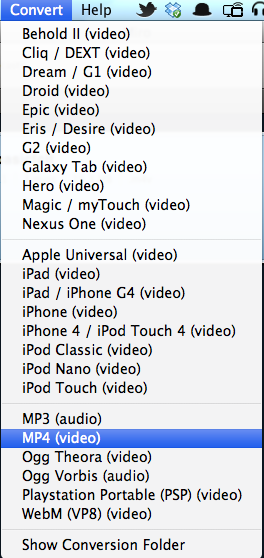
As you can see from the screenshot, presets are available for a range of Apple mobile devices (including different generations of the iPhone and iPod touch), as well as an Apple Universal one that I have not tried yet. The generic MP4 one I have used so far produced such good results, I can’t wait to try the other presets to see how well they do. I think Miro is a tool we’re going to be using a lot to make the files we upload to iTunes U smaller so that they take less time to both upload on our end, and faster to download on the end users end.
Miro is available for Mac OS X, Windows, and even Linux.
Updated: Miro does not seem to compress WMV files on Windows, which is odd since that is the format you are most likely to work with if you have Windows computer and are using Windows Movie Maker. Also, I found that there is a standalone conversion tool based on Miro called Miro Video Converter (for people who just want to convert/compress videos without installing the full Miro program).
 The Website of Luis Perez