In this post I will discuss two apps that work well with the new iPod touch for creating narrated slideshows that can be turned into podcasts.
The first app is SonicPics ($2.99, a free lite version limits you to 10 minutes and 3 images so you can try out the app). With the paid version the recording limit is 60 minutes and you can choose from three quality settings for the audio (Good, Better or Best, which is 44.1khz, 16-bit mono). To get started you select photos from your photo library on the iPod touch or you can take a photo with one of the built-in cameras. Each photo can have a title and description that can be displayed during the slideshow.
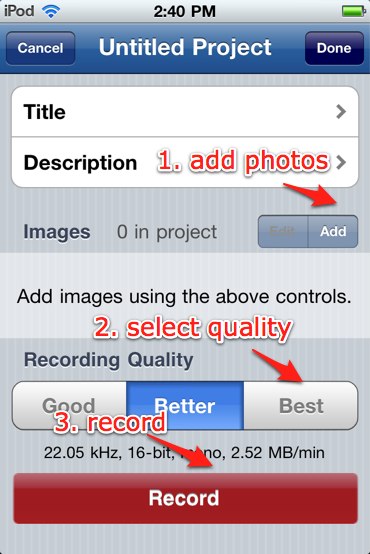
To narrate the slideshow, you’ll press the Record button at the bottom of the screen and then flip through the photos in the slideshow using the familiar iPod touch flick gesture. This makes it really easy to synch your voice with the slideshow. You can even pause a recording if you need to, and resume from where you left off. When you’re finished, several sharing options are available: you can share the video to your computer over Wifi if both devices are on the same network, you can upload the video to your YouTube account, or you can email it as an attachment if it is not too large (usually 10MB is the cutoff for most email accounts). The format for the exported video is .m4v, which is the format supported by iTunes (and iTunes U).
Overall, I found this app to be really easy to use and a good bargain.
Storyrobe (free) has many of the same features as SonicPics, but you’re limited to 3 minutes in the current version. I actually like this limit for podcasts created by students as it can encourage them to focus and not ramble on. Creating a story with Storyrobe is a three step process: select photos from your photo library or take a photo with the built in cameras, organize photos into the right order, and record your audio. While you’re recording, you advance to the next photo in your slideshow by tapping the Next Image button at the bottom of the screen.
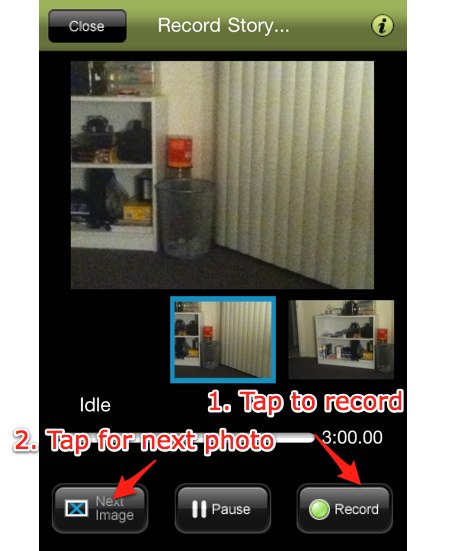
As with SonicPics, you can pause in the middle of a recording and pick up right where you left off. The finished video can be uploaded to YouTube directly from the iPod touch, saved to your Camera Roll and transferred to your computer with iPhoto, or you can email a link to it. It looks like the video is saved as an .mp4 file, but it was not clear to me how long the recording would be available if you email it as a link (the actual file is saved on the developer’s site).
I found out while reading the comments on the app’s iTunes Store page that it used to cost $2.99 and is now free while the developer works on a second version (version 1.0 is the one currently available for download). I anticipate the new version will be priced at $2.99 to stay competitive with SonicPics and other similar apps.
So there you have it. Two inexpensive apps that allow you to create a podcast without using a computer. All the work (taking photos, recording narration, saving the movie) is done on your iPod touch.
 The Website of Luis Perez